
Create and edit to-do lists
All to-dos in a workspace are organised into to-do lists and can be managed in the "To-Dos" section.
Creating to-do lists
- 1
-
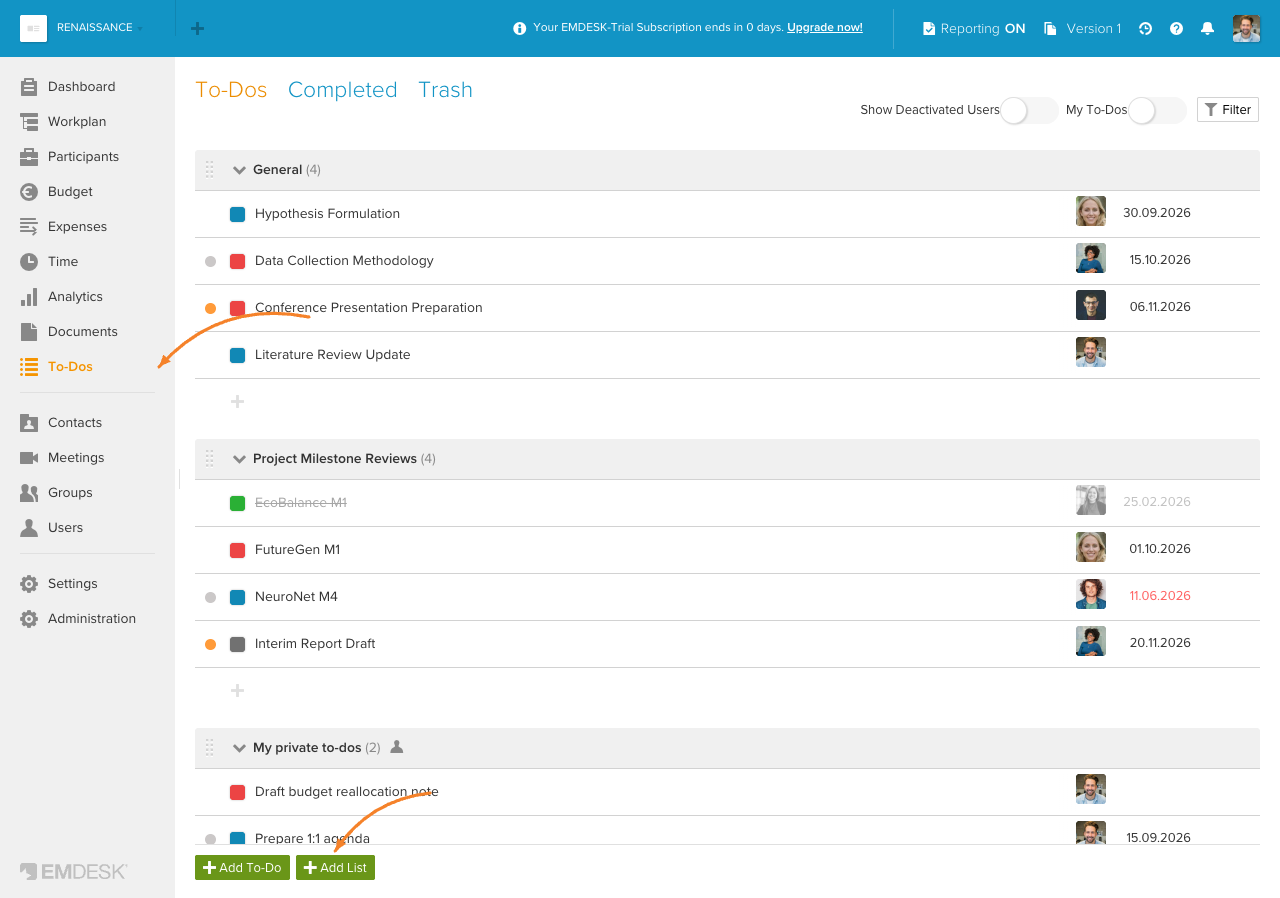
Click To-Dos in Home menu, this will open the "To-Dos" section.
- 2
-
Click + Add List at the bottom of the section, this will open the "New List" sidebar.
- 3
-
In the sidebar, you can set the following properties for the new to-do list:
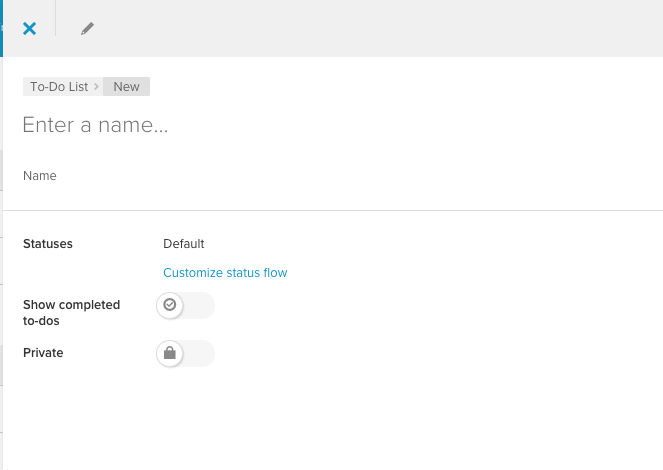
- Name: Click the placeholder at the top and enter a name for the to-do list
- Statuses: Here you can set the status workflow for your to-dos in this list. Every new list is set to the "Default" status workflow. See Customise to-do statuses to edit the workflow itself.
- Show completed to-dos: Turn the toggle on to display to-dos marked as "Completed" in this to-do list (shown with strikethrough), or turn it off to hide them. All completed to-dos can be accessed via the "Completed" tab in the "To-Dos" section.
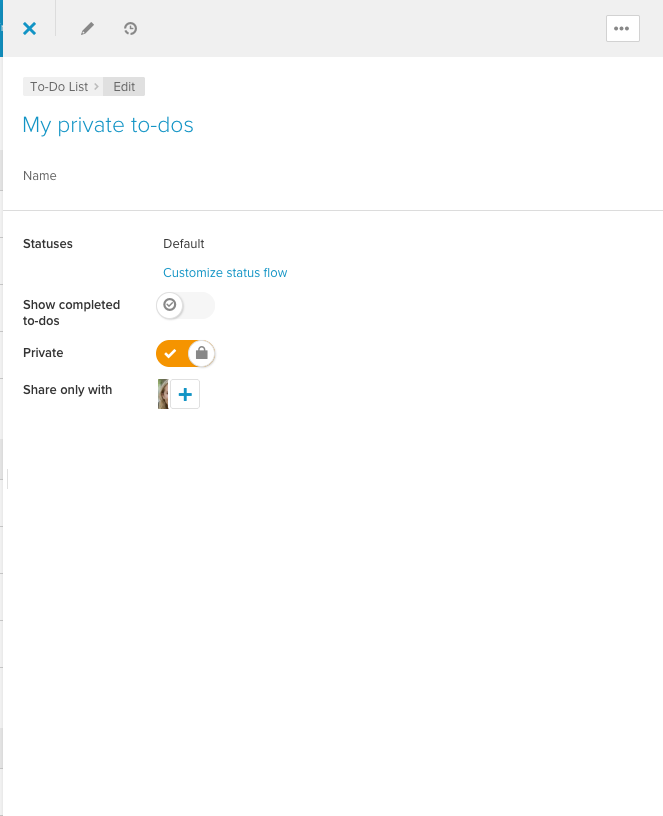
- Private: Turn the toggle on to make the list private (for a step-by-step walkthrough, see Create a private to-do list), otherwise all workspace users will be able to access and edit to-dos; if needed, select other individuals and groups to share the list with:
- 4
-
Click Save List at the bottom of the sidebar.
Editing to-do lists
- 1
-
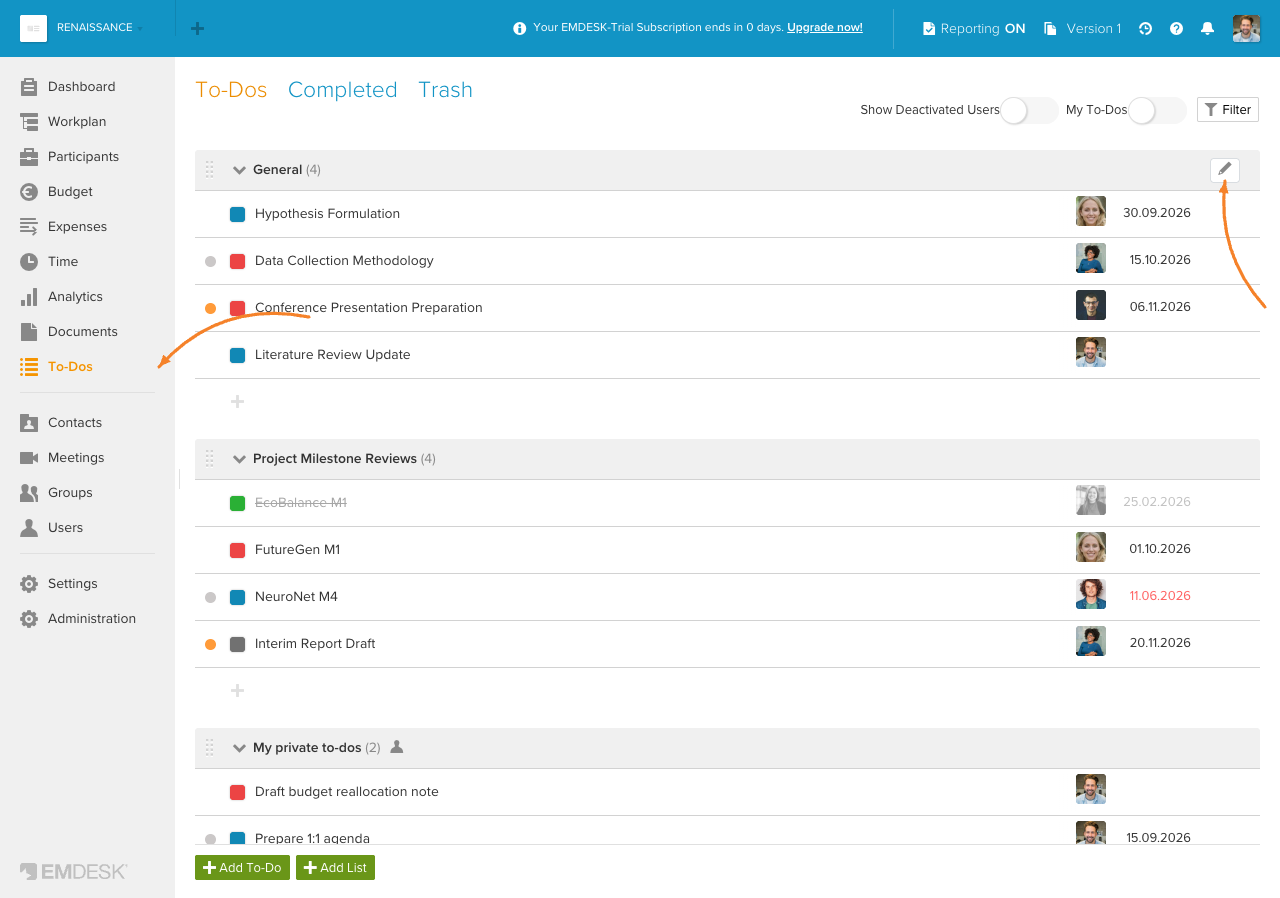
Click To-Dos in Home menu, this will open the "To-Dos" section.
- 2
-
Hover over the to-do list that you would like to edit and click on its "Edit" icon, this will open a sidebar for the to-do list.
- 3
-
In the sidebar, you can update the following properties for the to-do list:
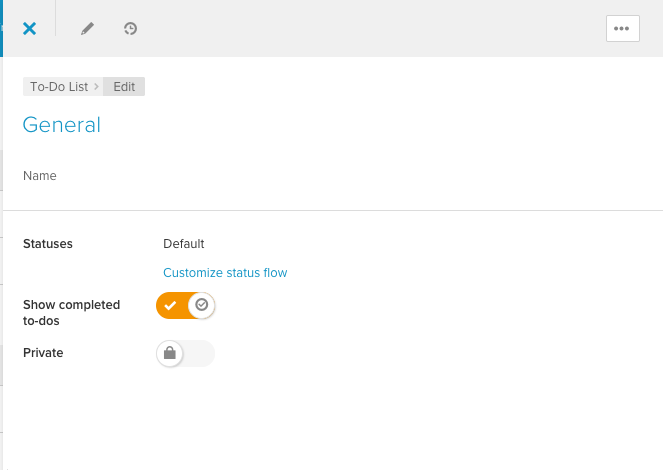
- Name: Click the placeholder at the top and edit the to-do list name
- Statuses: Here you can set the status workflow for your to-dos in this list. Every new list is set to the "Default" status workflow. See Customise to-do statuses to edit the workflow itself.
- Show completed to-dos: Turn the toggle on to display to-dos marked as "Completed" in this to-do list (shown with strikethrough), or turn it off to hide them. All completed to-dos can be accessed via the "Completed" tab in the "To-Dos" section.
- Private: Turn the toggle on to make the list private and restrict access to the to-do list for all other workspace users; if needed, select other individuals and groups to share the list with:
- 4
-
Click Save List at the bottom of the sidebar.
Note: Read here how to delete to-do lists.