
Create a private to-do list
By default, all to-dos and to-do lists located in the "To-Dos" section are visible to all workspace users, regardless of their access levels and rights. To restrict access to certain to-do lists, make those lists private.
Follow the instructions below on how to create private to-do lists.
- 1
-
Click To-Dos in Home menu, this will open the "To-Dos" section.
- 2
-
Click + Add List at the bottom of the section, this will open a sidebar for the new to-do list.
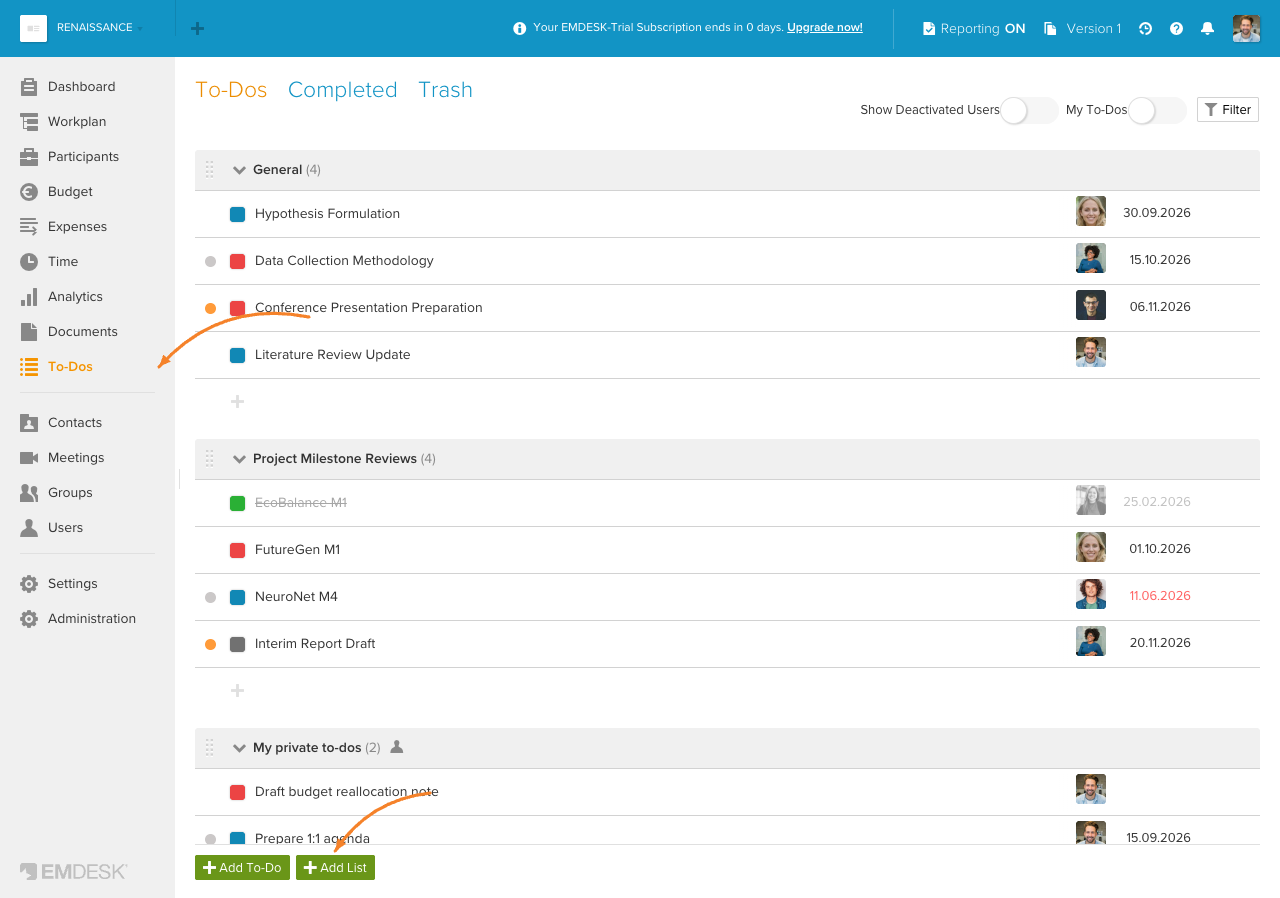
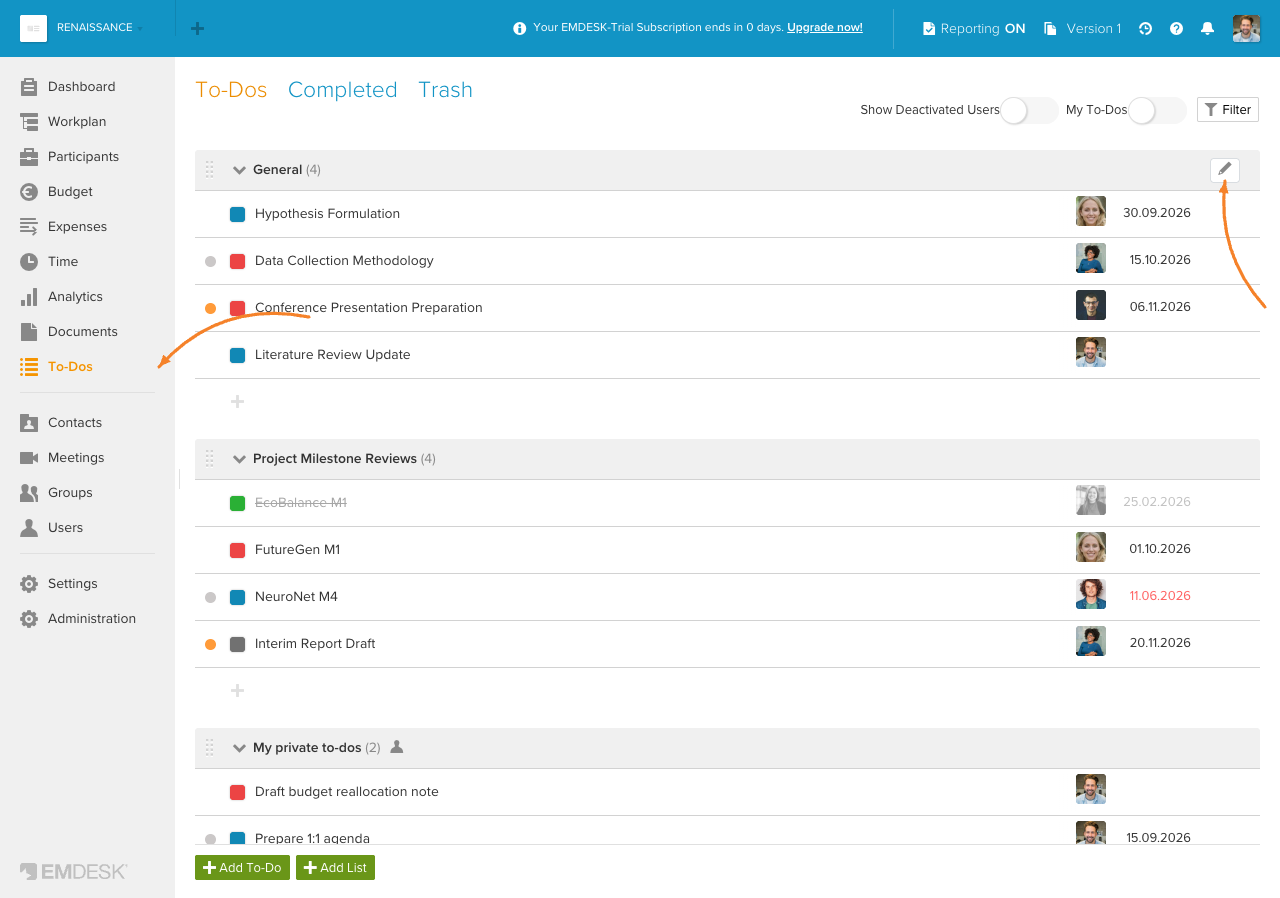
To make an already existing to-do list private, hover over the list and click on its "Edit" icon, this will open a sidebar for the to-do list.
- 3
-
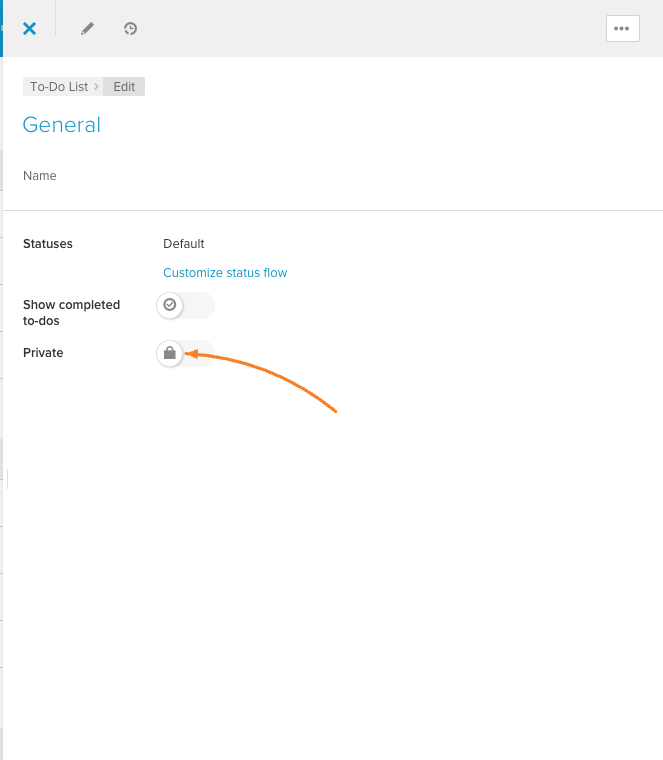
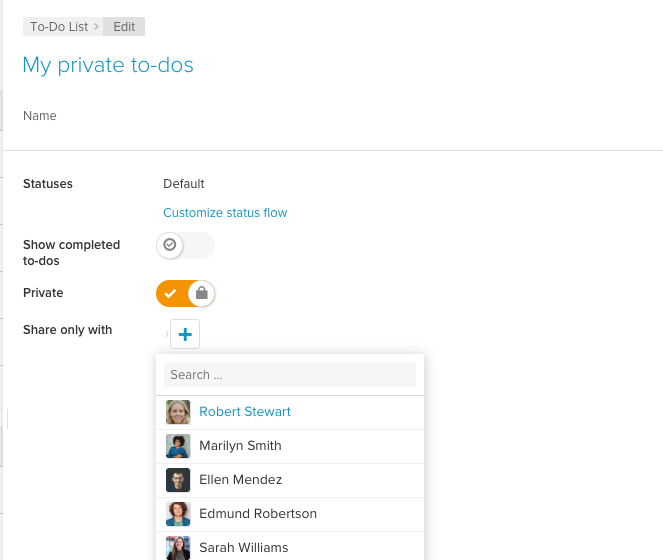
In the sidebar, turn the toggle next to Private on to make the list private; if needed, select other individuals and groups to share the list with:
When Private is on, the list is visible only to you. To give specific colleagues access, use the Share only with field: click + and select the individuals and/or groups you want to share the list with. Everyone you add can access and edit the to-dos in this list, while everyone else in the workspace has no access:
- 4
-
Click Save List at the bottom of the sidebar.
Note: For all to-do list options, read how to create and edit to-do lists and work with to-dos.