
Customise to-do statuses
To-do statuses indicate the progress of your workspace to-dos, e.g. Open, In progress, or Done. All to-do lists in a workspace share the same status workflow, which you can customise from the workspace's Customisation settings.
Note: Only workspace Admins and Project Managers can access and edit the status workflow.
To create a new to-do status, or to update, reorder the type of, or delete an existing one, follow the instructions below.
- 1
-
Go to Settings > Customisation, hover over the status workflow, and click the "Edit" icon on the right to open it in the sidebar.

- 2
-
In the sidebar, you can update the following properties for the status workflow:
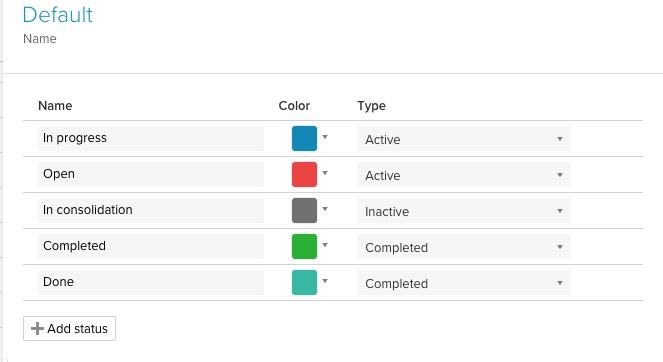
- Add a new status by clicking Add status (up to 20 statuses per workflow; at least 1 must always remain)
- Update a status name by typing a new one in the "Name" column
- Change the colour of a status by clicking the colour box in the "Colour" column
- Set the status type by clicking the dropdown and choosing between "Active", "Inactive", and "Completed"
Note: All to-dos with a status of "Completed" type are shown in the "Completed" tab of the "To-Dos" section, unless they're located in a to-do list with a setting to show completed to-dos: 
Note: Statuses are ordered automatically -- grouped by type (Active, then Inactive, then Completed) and alphabetically by name within each group. There's no manual drag-and-drop reordering for statuses. Delete a status by clicking X on the right of it. If any to-dos are currently set to that status, you'll be asked to choose a replacement status for each of them -- this reassignment step can't be skipped, and the deletion won't go through until every affected to-do has a new status selected.
- 3
-
Click Save Statuses at the bottom of the sidebar to save your changes.
