
Delete to-dos and to-do lists
Contents
Deleting to-dos
- 1
-
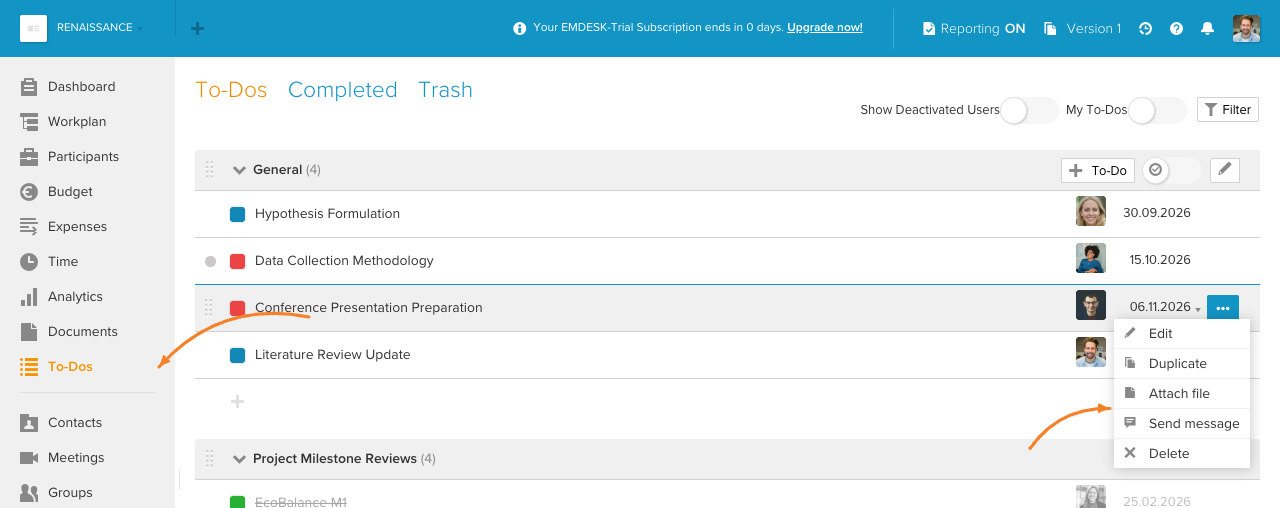
Click To-Dos in Home menu, this will open the "To-Dos" section.
- 2
-
Click the quick action menu at the to-do that you would like to delete and choose Delete.
- 3
-
To delete the to-do, click Yes in the appeared window.
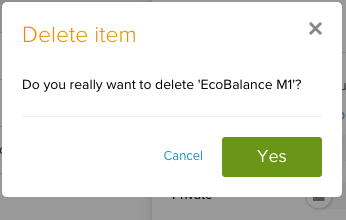
The deleted to-do lands into the "Trash" tab of the "To-Dos" section, hover over the to-do and click the "Restore" icon to restore it (see Restore to-dos for the full steps):

Tip: You can also delete a to-do using its sidebar by clicking the action menu at the top right and choosing Delete:

Note: Read here how to create and edit to-dos.
Deleting to-do lists
- 1
-
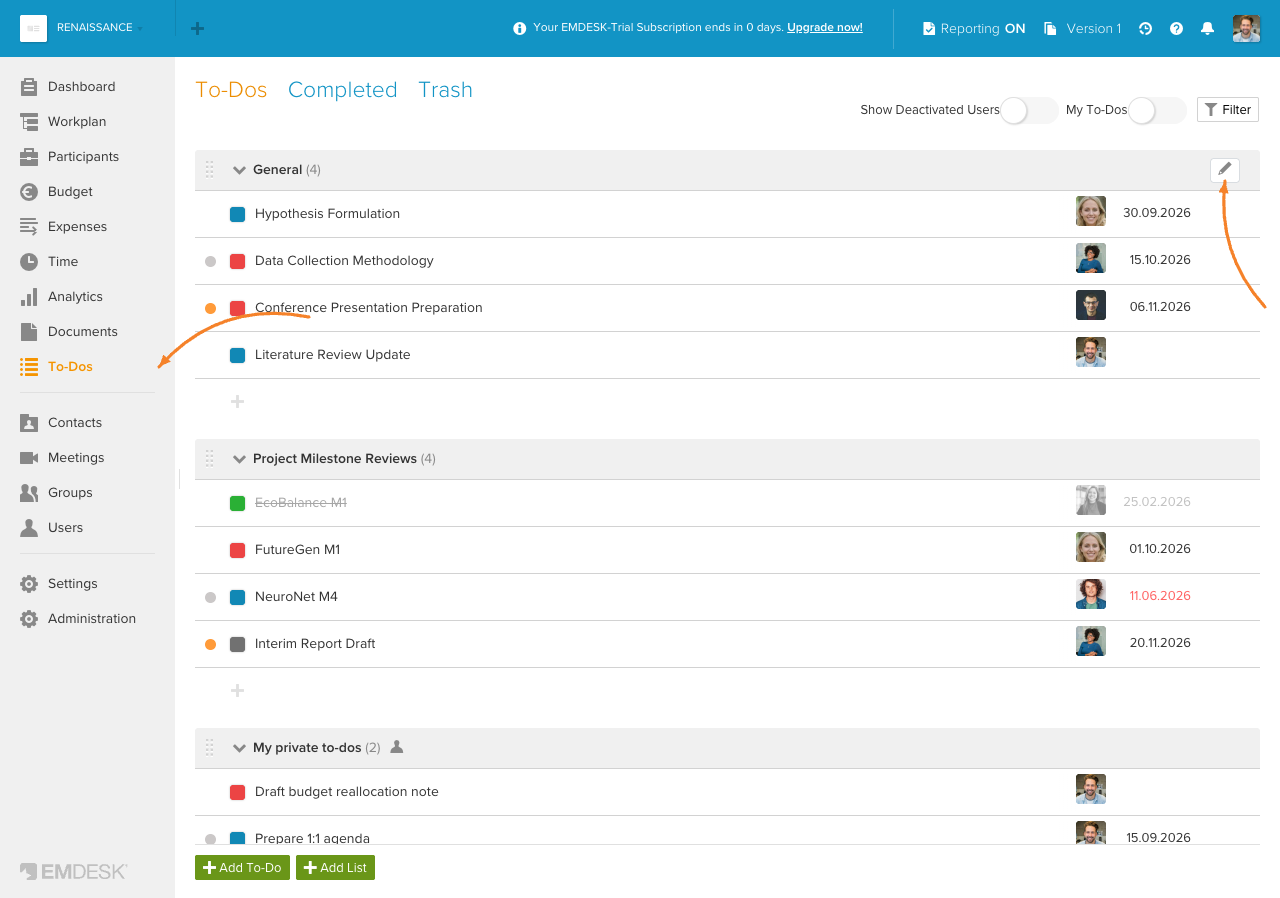
Click To-Dos in Home menu, this will open the "To-Dos" section.
- 2
-
Hover over the to-do list that you would like to delete and click on its "Edit" icon, this will open a sidebar for the to-do list.
- 3
-
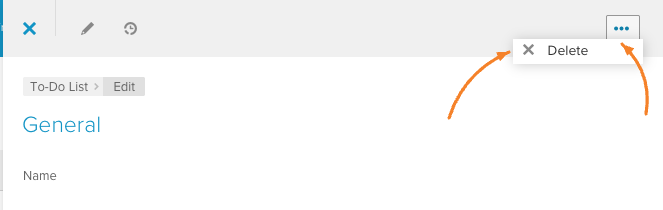
In the sidebar, click the action menu at the top right and choose Delete.
- 4
-
To delete the to-do list, click Yes in the appeared window.
All to-dos under the deleted to-do list land into the "Trash" tab of the "To-Dos" section, hover over a to-do and click the "Restore" icon to restore it (see Restore to-dos for the full steps):

Note: Read here how to create and edit to-do lists.