
Mass update or delete items
With bulk editing you change, lock or delete many items in one go instead of opening each one. It is available in the tables of the Workplan (also in the Kanban view), Participants, Budget and Expenses, and in Documents.
💡 Note:
- You can only select items you have at least Edit rights to. Deleting and moving needs Manage rights (see Roles, access levels, and access rights).
- Plan data (Workplan, Participants, Budget) can only be changed in the latest, editable plan version; expenses only while reporting is on and in the active version.
- Locked items are not changed. Only Admins and Managers can lock and unlock.
Workplan and Participants
Selecting items
- Open the table. Hover over a row: a checkbox replaces its ID. Tick the rows you want to change.
- To select all visible rows, tick the checkbox in the header. If a filter is active, all filtered rows are selected; otherwise the top-level rows and the rows of expanded items. Up to 150 items can be selected at once.
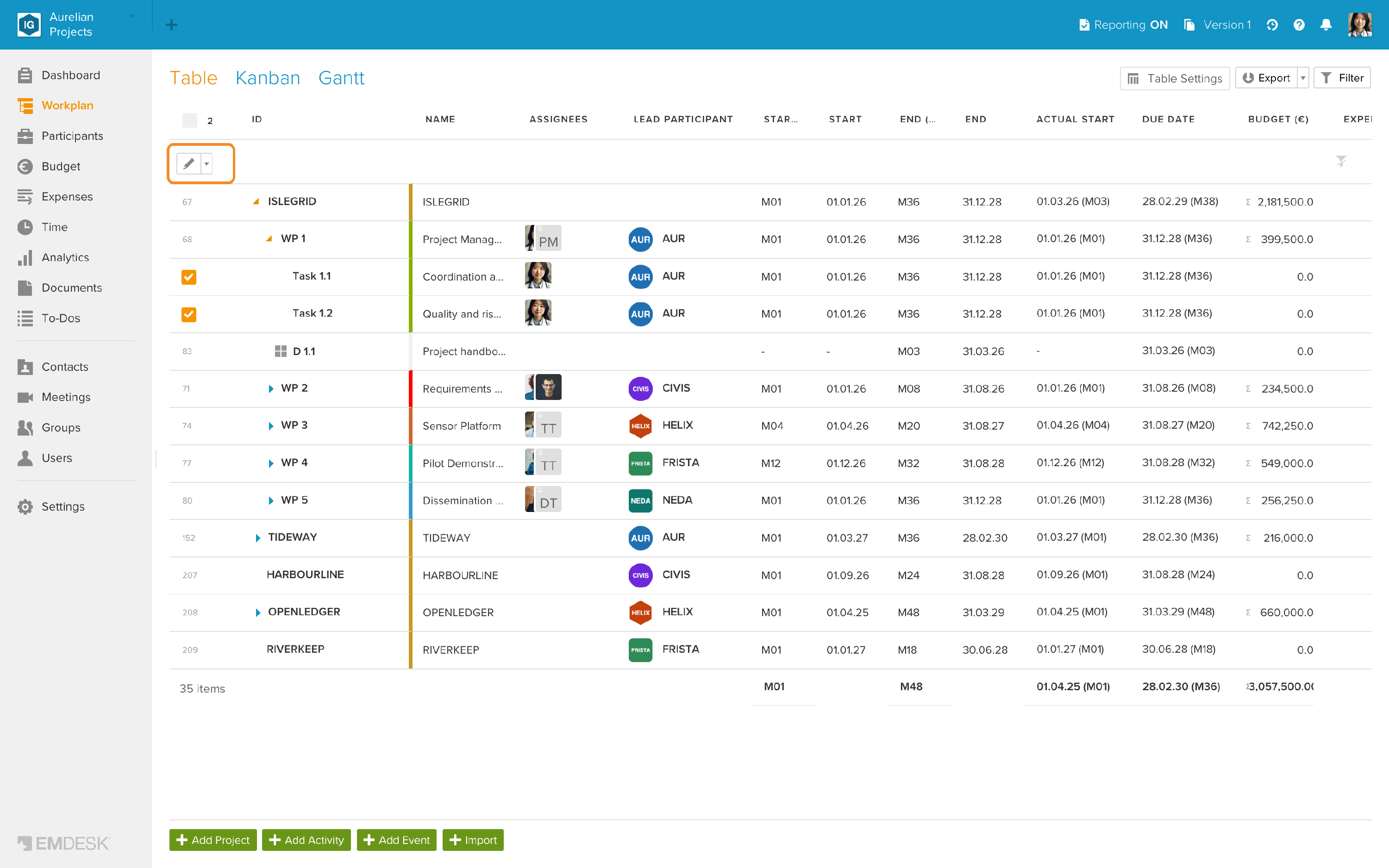
- Click the Edit (pencil) button that appears in the header to edit the selection, or click the arrow next to it and select Delete.
Editing
In the dialog, tick the fields you want to change (changing a value ticks it automatically); unticked fields stay as they are. Then click Update.
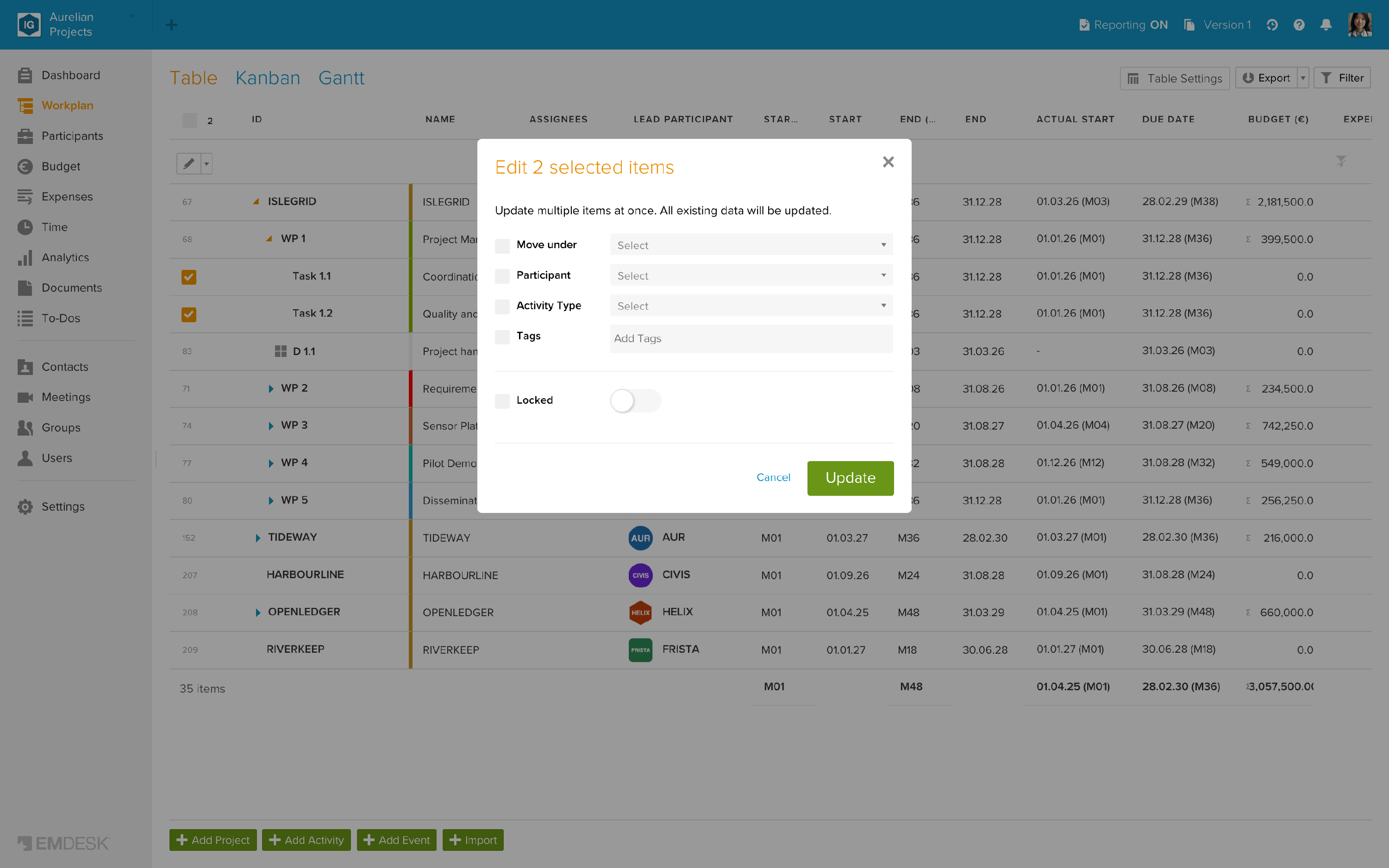
Workplan:
- Move under: moves the selected items under another activity of the same project. Only possible if all items are in the same project and on the same level, and you have Manage rights to them.
- Participant: the lead participant of all selected items.
- Activity Type: for the selected activities (events keep theirs).
- Tags: the tags are added to the existing ones; leaving the field empty removes all tags.
- Locked (Admins and Managers): locks or unlocks the items, including their sub-activities and events.
Participants: Move under (another participant), Part. Type, Budget Limit, Tags, Inactive and Locked.
If the selection contains locked items, the dialog only offers Locked, so that you can unlock them first.
Deleting
Select Delete and confirm with Yes. Deleting an activity or participant also deletes everything below it; the dialog counts these items and lists the ones you are not allowed to delete.
Budget and Expenses
Selecting items
- Hover over a row and tick its checkbox. As soon as one row is selected, all rows show a checkbox.
- The header checkbox selects the rows of the current page; click Select all in the bar to select all rows that match your filters.
Instead of the filters, a bar shows how many items are selected and what you can change.
Editing
Click a field in the bar, choose the new value and click Apply. One field is changed at a time.
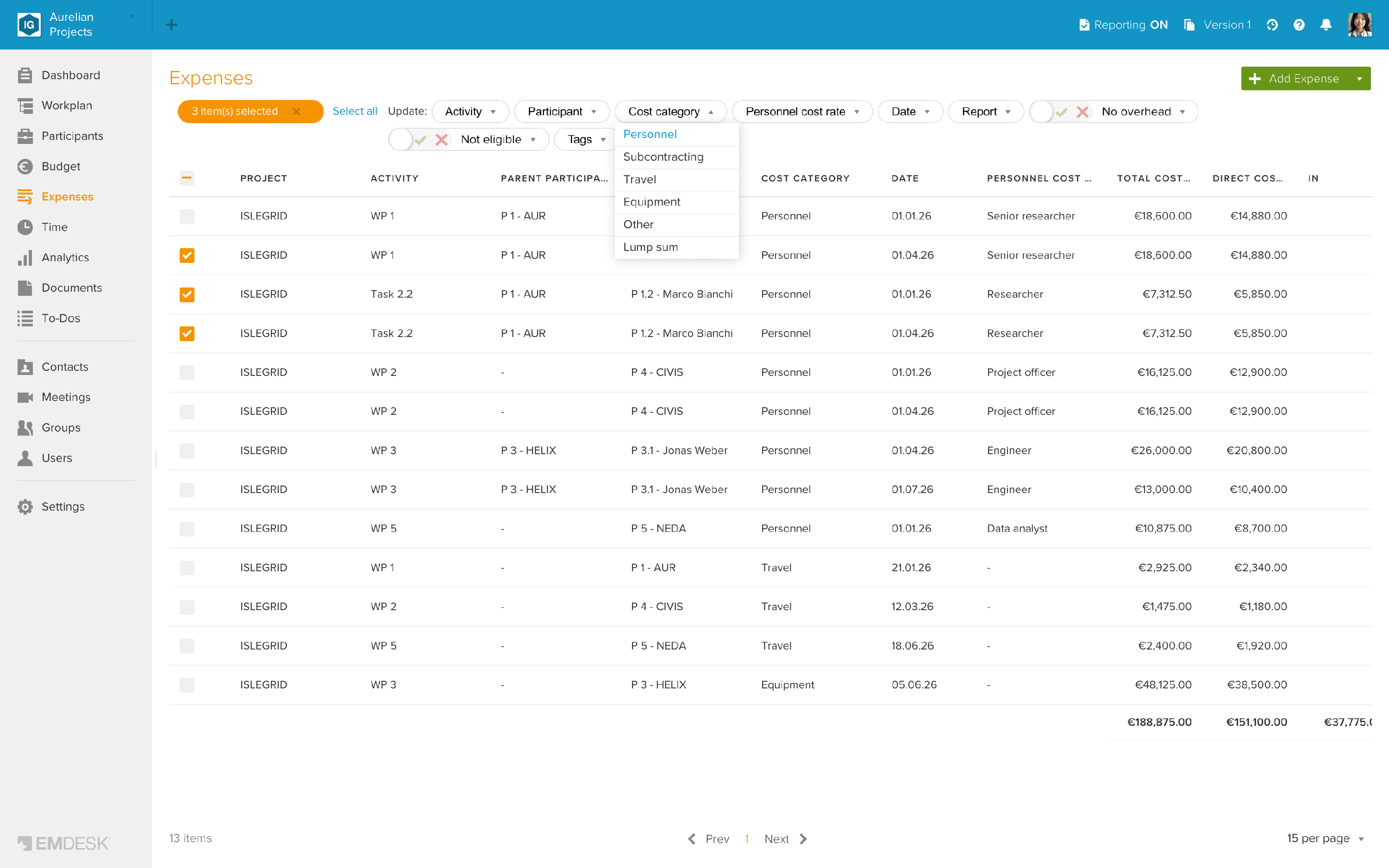
- Activity, Participant, Cost category and Personnel cost rate: in Budget and Expenses.
- Tags: adds tags; tick Replace existing tags to replace them instead.
- Date, Report, No overhead and Not eligible: in Expenses only.
- Lock / Unlock (Admins and Managers): apply immediately after confirming.
⚠️ Rules when changing costs:
- Cost category can only be changed if all selected items have the same type of category (rate-based or lump sum).
- Participant: personnel costs are moved to a cost rate of the new participant. If the participant has several suitable rates, EMDESK asks which one to use; if it has none, create one first.
- Personnel cost rate: the amounts are recalculated from the new rate and the effort. Only rate-based items of the rate's participant are changed.
- Activity in another project, or Report: expenses must belong to the same project as their report; EMDESK asks for a report of the target project if needed.
- Locked items, and expenses dated in a period where expense reporting is locked, are skipped.
Deleting
Click the trash icon in the bar and confirm with Yes. Locked items are not deleted; EMDESK tells you if some were skipped.
Documents
In Documents, tick folders and files to move them to another Location, add Tags, or Move to trash. Locked folders and files cannot be selected.
Many more properties can be changed for a single item in its sidebar.