
Lock / unlock workspace items
Locking protects an item from further changes, for example a work package whose plan has been agreed with the funder, a deliverable that has been submitted, or expenses that have already been reported. A locked item can be viewed but not edited until it is unlocked again.
💡 Note: Only Admins and Managers can lock and unlock items (see Roles, access levels, and access rights). Locking is not available in the Free plan.
What can be locked
- Projects and activities (work packages, tasks)
- Events (deliverables and milestones)
- Status updates of activities and events
- Budget items and expenses
- Participants
- Folders and documents
Locking and unlocking an item
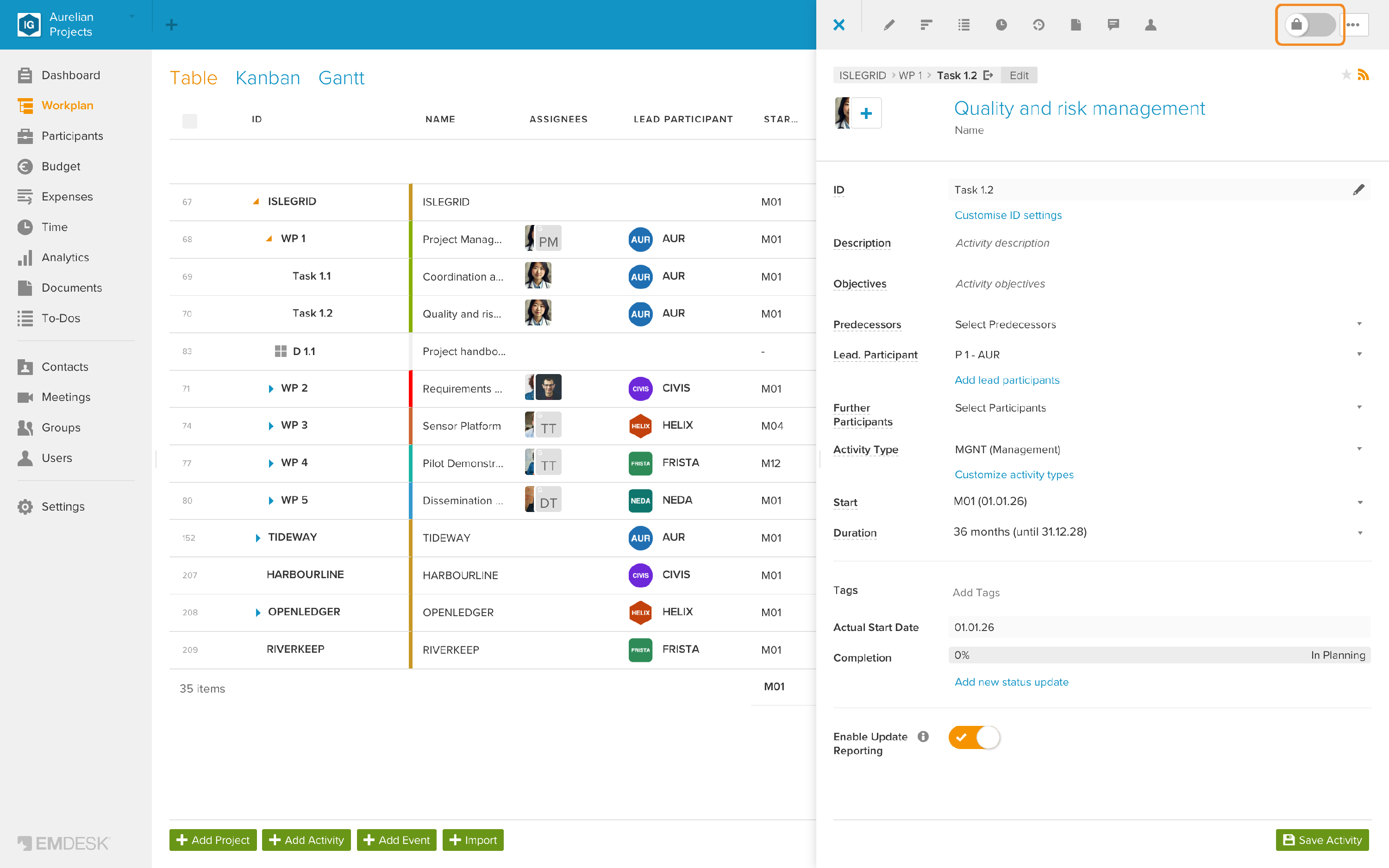
In the sidebar: open the item and click the padlock toggle at the top right. Click it again to unlock.
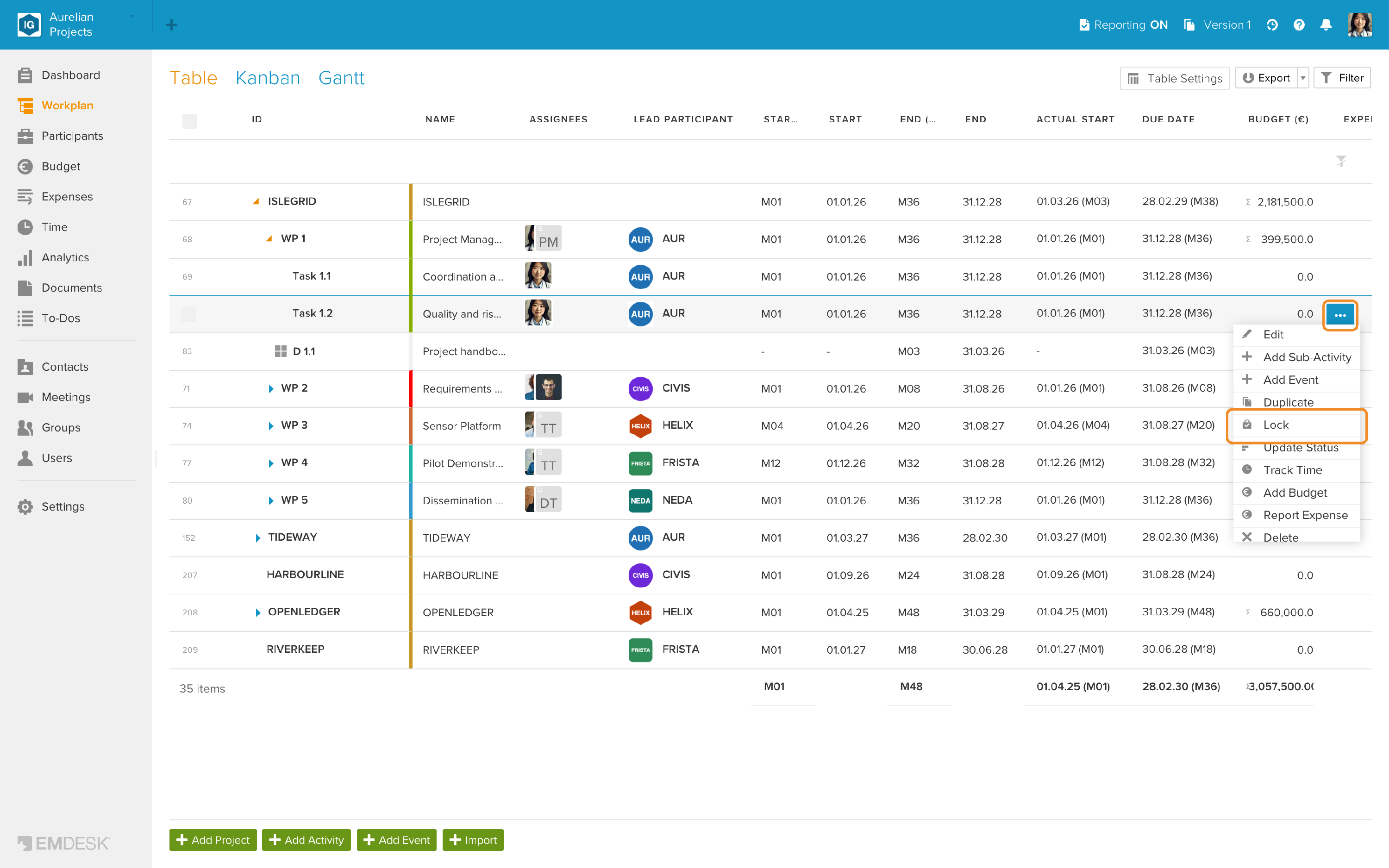
In the Workplan (Table, Kanban or Gantt view): click the … button of the item and select Lock (or Unlock).
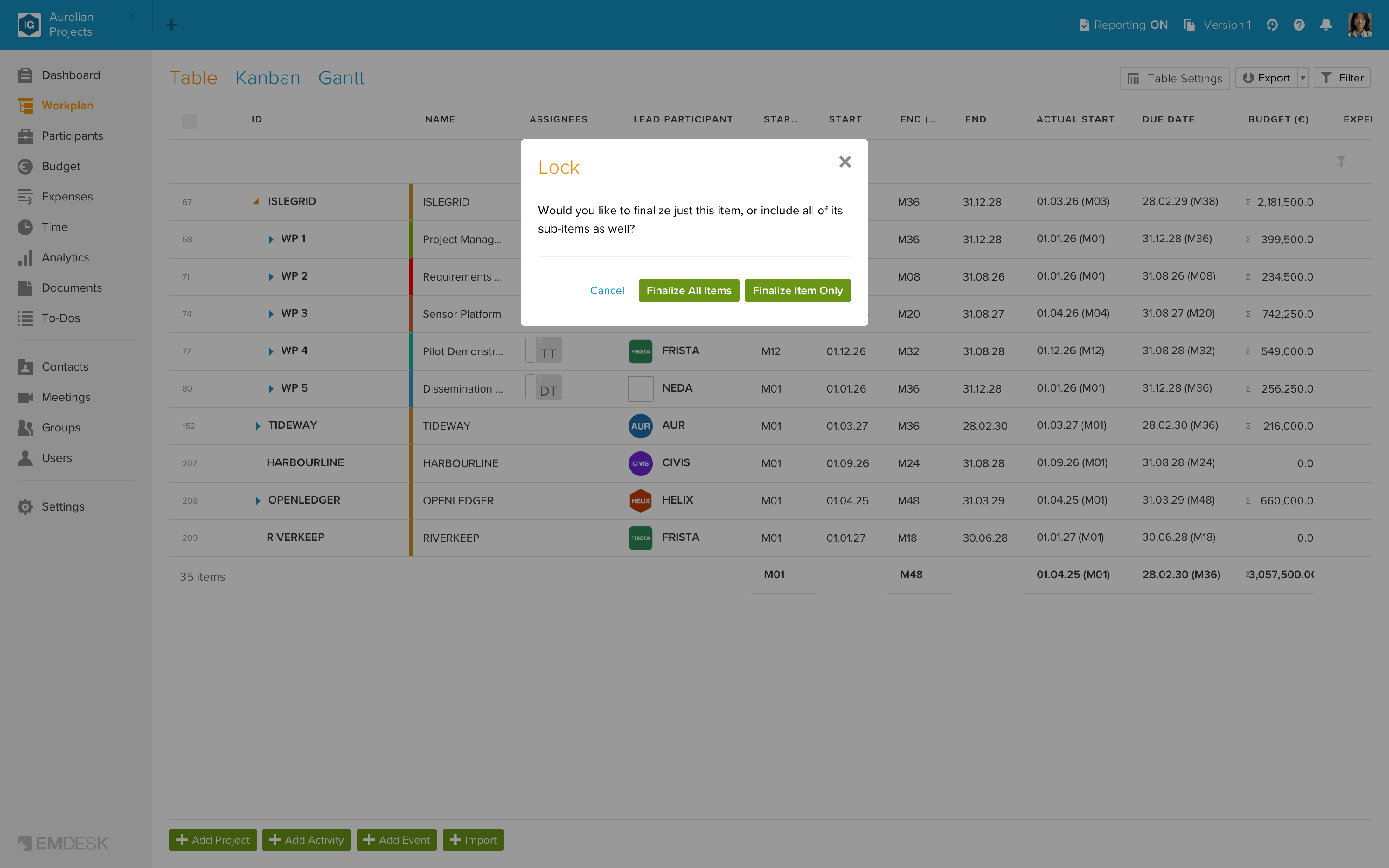
If the item has sub-activities or events, EMDESK asks whether to lock only this item or all its sub-items as well: click Finalize Item Only or Finalize All Items.
- Several items at once: in the Workplan Table view, select the rows and use Edit to switch Locked on or off. In the Budget and Expenses views, use Lock / Unlock in the row menu or for a selection of rows.
- Status updates: lock individual updates with the padlock next to each entry in the item's Updates tab. To lock all updates, expenses or time records up to a date, use the reporting locks (see Disable reporting temporarily).
What locking does
For every locked item:
- Its own details can no longer be changed; the sidebar is read-only and shows Item is locked and cannot be edited.
- It cannot be deleted or moved to another position.
- A padlock icon marks it in lists and views. In the Workplan, use Filter › Locked to list locked items.
- Its assignees and access rights can still be changed, and it can still be marked as a favourite or followed.
- It can still be duplicated; the copy is not locked.
What else is blocked or still possible depends on the type of item:
| Item | Locked | Still possible |
|---|---|---|
| Project / activity | Its fields (name, dates, participants, …); adding sub-activities or events under it | Reporting status updates (also by dragging the Kanban card), tracking time, adding budget items and expenses, to-dos, documents and comments |
| Deliverable / milestone | Its fields (type, due date, …) | Reporting status updates, to-dos, documents and comments |
| Status update | Editing (the Updates tab shows View instead of Edit) and deleting | Adding newer status updates to the item |
| Budget item / expense | Editing, deleting, bulk editing; for expenses also moving them to another reporting period | They still count in all totals; to-dos, documents and comments |
| Participant | Its fields, adding sub-participants and cost rates | Changing its members; adding budget items and expenses |
| Folder | Renaming, moving and deleting it; uploading documents or creating folders in it | Comments and access rights. Choose All when locking to lock the documents and subfolders in it as well. |
| Document | Uploading new versions, editing, moving and deleting it; it opens read-only in the online editor | Downloading and previewing, to-dos and comments |
💡 Note: Locking an item does not lock what belongs to it. The status updates, budget items and expenses of a locked activity stay editable; lock them separately, or use the reporting locks to lock them up to a date (see Disable reporting temporarily). Finalize All Items locks only the sub-activities and events of an activity.
Locks are saved per plan version.