
Indirect cost rates for a specific participant
Indirect cost rates define how indirect costs are calculated as a percentage on top of eligible direct costs. For an overview of how general and participant indirect cost rates work together, see main article.
At participant level you can define indirect cost rates that apply:
- To this participant in all projects, or
- Only to this participant in one specific project
- For one or several cost categories
Participant-level indirect cost rates act as exceptions to the general indirect cost rates defined at workspace level.
Note: To create and edit participant-level indirect cost rates, you need Edit access to that participant, and the current plan version must be in Edit mode.
Create a indirect cost rate for specific participant
Indirect cost rates at participant level are managed in the Participants section.
- Click Participants in the main menu to open the Participants section.
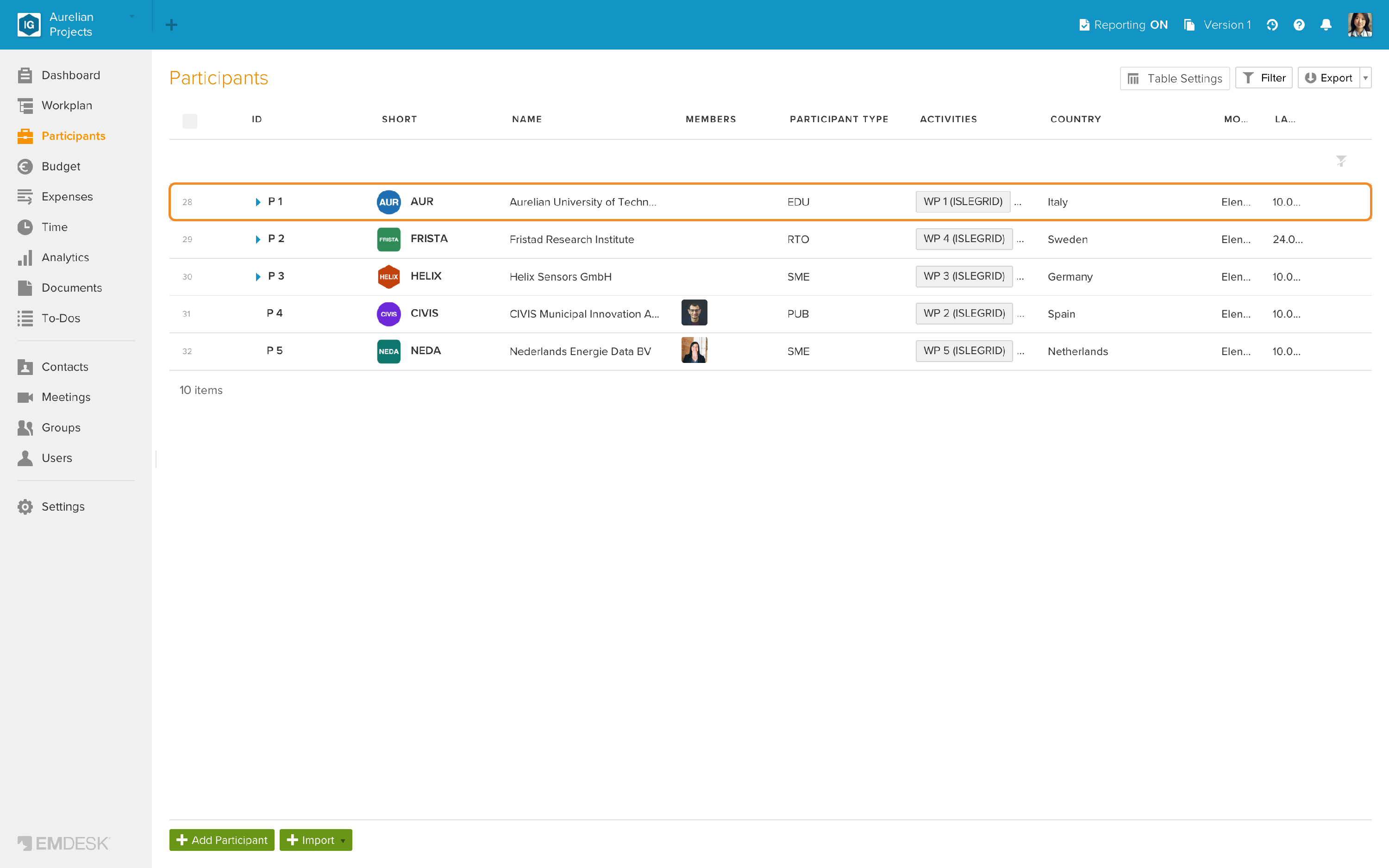
- Click the participant whose indirect cost rates you want to create.
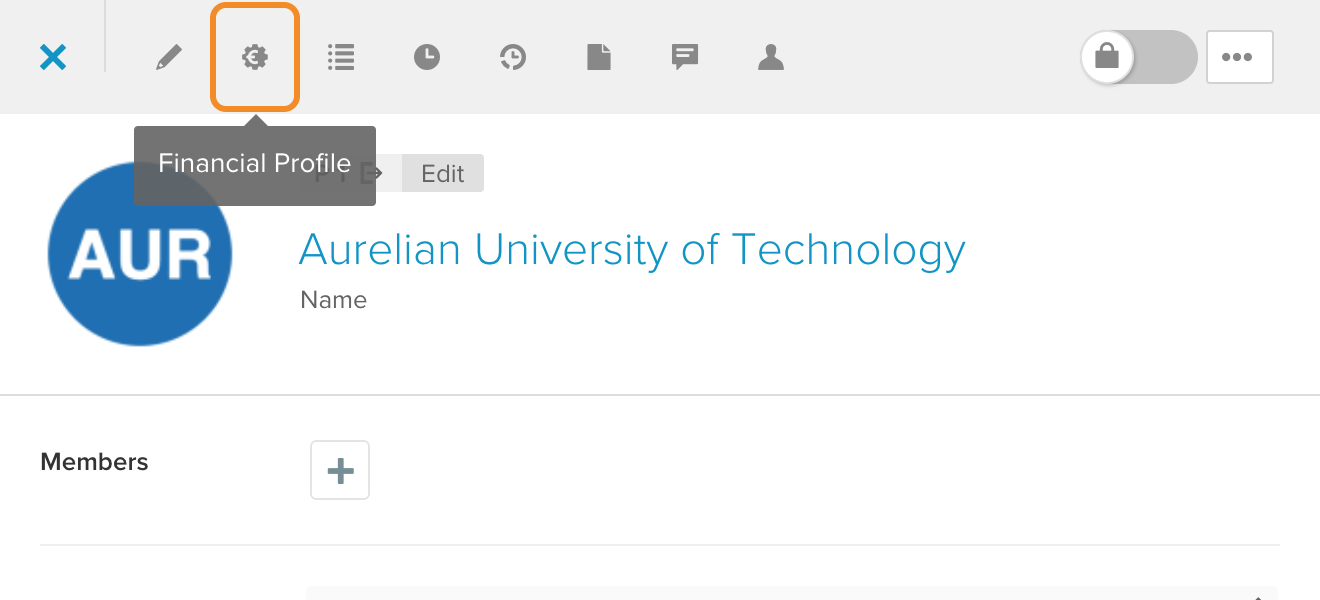
- A sidebar for this participant opens. Select the Financial Profile tab.
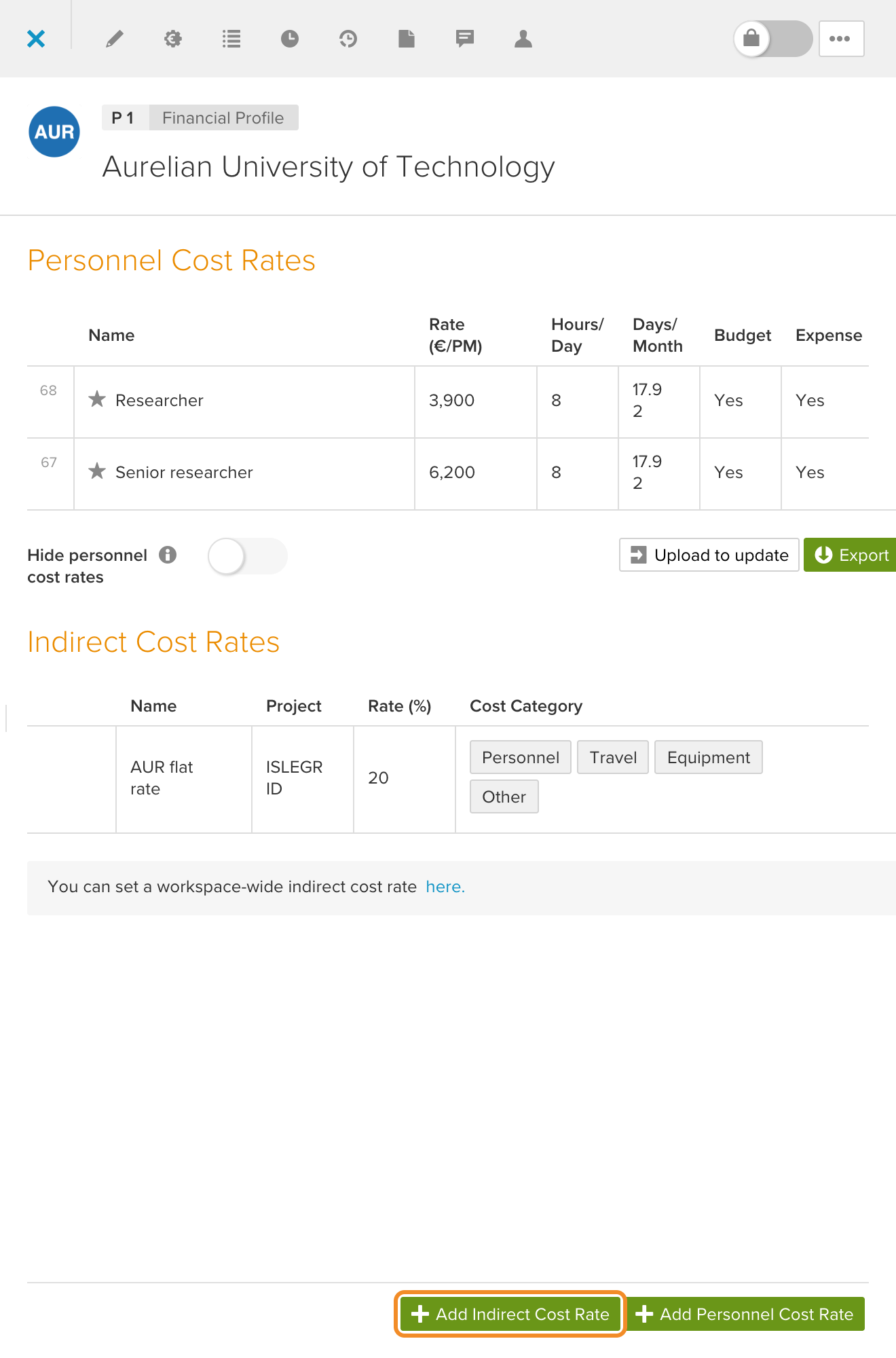
- At the bottom of the sidebar, click + Add Indirect Cost Rate.

An indirect cost rate sidebar opens, where you define the participant-level indirect cost rate:
- Rate (%): Click the blue “0” placeholder and enter the rate as a percentage
- Name: Enter a clear label, for example 25 % HE overhead or Org X special overhead.
- Description (optional): Add any explanation needed.
- Projects:
- Any projects - use this rate as default for this participant in all projects
- Or pick a project if the rate should apply only there
- Cost categories:
- Tick the checkbox for each cost category to which the rate should apply.
- Cost categories can be configured in the Customization settings.
Note: Only those cost categories for which no indirect cost rate has yet been defined for this participant and project are offered for selection.
- Click Save Cost Rate in the bottom right corner.
Update existing indirect cost rates at a participant
Go to the main menu → Participants and open the participant sidebar. Select the Financial profile tab. Hover over the indirect cost rate and click the Edit icon. Update as needed:
- Rate (%): Click the blue value and enter the rate as a percentage
- Name: Update the rate name
- Description (optional): Update the description.
- Projects:
- Any projects - use this rate as default for this participant in all projects
- Or pick a project if the rate should apply only there
- Cost categories:
- Tick the checkbox for each cost category to which the rate should apply.
- Cost categories can be configured in the Customization settings.
Tip: If you need to adjust the general workspace rules that these participant rates override, see General indirect cost rates.