
Upload a profile photo
Your profile photo helps your teammates recognise you, for example when you post a comment or appear in Contacts. If you have not uploaded a photo, your initials are shown instead in a coloured box.
Add or update a profile photo
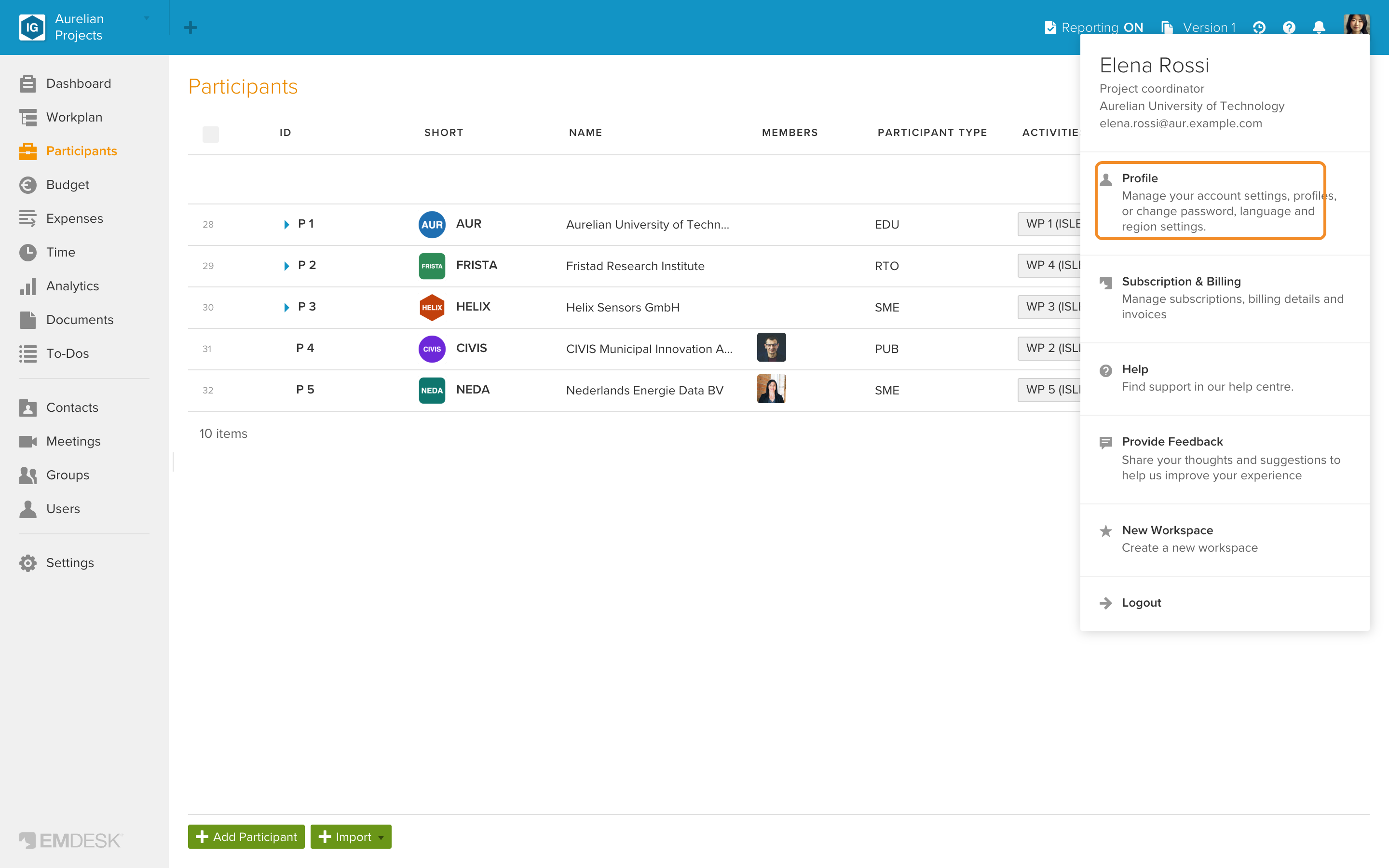
- Click your picture at the top right and select Profile.
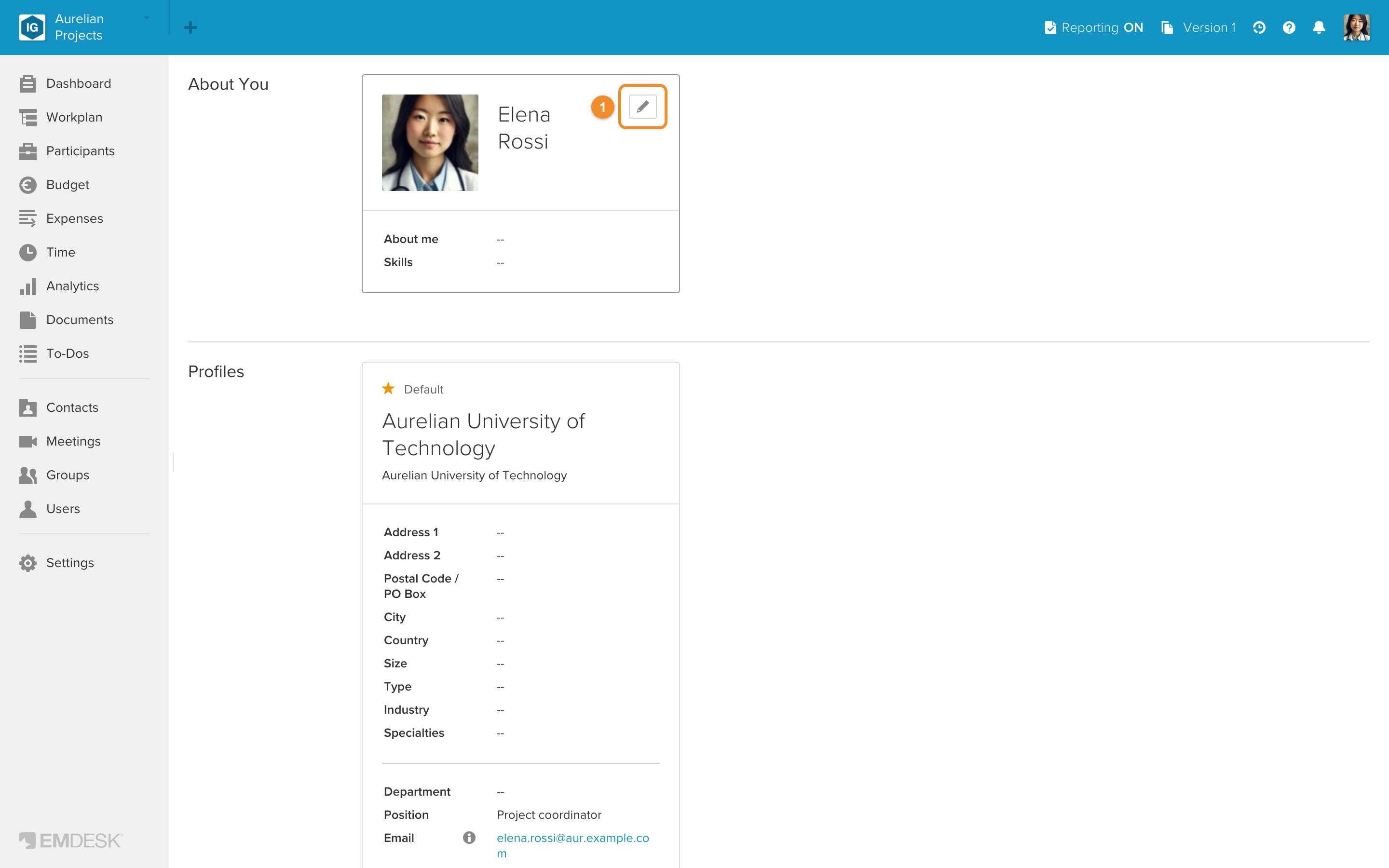
- In About You, click the tile (or its Edit icon) to open the sidebar.
- Click Select or drop profile image to browse for a photo, or drag and drop an image onto the box.

- Click Save Profile.
💡 Note: You can upload JPG or PNG files up to 25 MB. Square photos with the face centred work best; EMDESK resizes larger images automatically.
Remove a profile photo
- Click your picture at the top right and select Profile.
- In About You, click the tile (or its Edit icon) to open the sidebar.
- Hover over your photo and click the small x icon on it, then click Save Profile.

💡 Note: Each user updates their own photo. Admins and Managers cannot change another user's personal settings.
See also: Browse contact details of users.