
Share files via public links
Public Links allow you to share files stored in EMDESK with people outside your workspace — such as external reviewers, auditors, or partners who don't have an EMDESK account. When you create a public link, a secure, time-limited URL is generated that anyone can use to view and download the file without logging in.
Note: Public Links are only available on paid plans. They are not available during the trial period or on the free plan. A workspace administrator or manager must activate the feature before any member can use it.
In this article
- Activating Public Links
- Creating a Public Link
- Managing Existing Public Links
- Identifying Files with Public Links
- What Recipients See
- Reporting Content
- Security and Expiration
- Limitations
- Tips & Best Practices
Activating Public Links
Public Links are disabled by default on all workspaces. Before anyone in the workspace can create public links, the feature must be activated once at the workspace level.
Who can activate
| Role | Can Activate |
|---|---|
| Administrator | Yes |
| Manager | Yes |
| User | No — must contact an administrator or manager |
| Guest | No |
Activation process
When an administrator or manager first tries to create a public link, an "Enable Public Links" dialog appears:
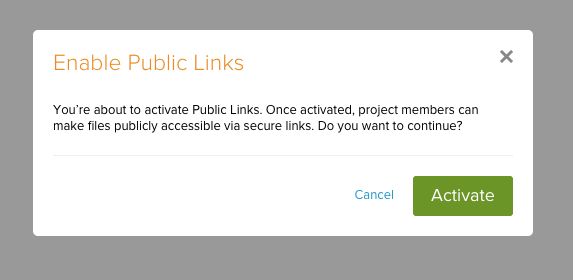
"You're about to activate Public Links. Once activated, project members can make files publicly accessible via secure links. Do you want to continue?"
Click "Activate" to enable the feature for the entire workspace. This activation is permanent and applies to all workspace members.
Note: If you are a regular user and try to create a public link before the feature has been activated, you will see a message asking you to contact an administrator or manager to enable it.
Creating a Public Link
Once public links have been activated for your workspace, any member can create a public link for a file in the Documents section.
- Navigate to the Documents section from the left sidebar menu.
- Hover over the file you want to share and click the option menu. Select "Create public link" from the context menu.
-
The "Create Public Link" dialog opens with an expiration date picker and a link field.

- Set the expiration date:
- Minimum: tomorrow (current date + 1 day)
- Maximum: 3 years from today
- Default: 3 years from today
- Click "Generate" to create the link.
- The public link URL appears in the text field. Click "Copy" to copy it to your clipboard.
- Share the link via email, messaging, or any other channel.
Note: EMDocs cannot be shared via public links. The "Create public link" option does not appear for EMDoc files.
Managing Existing Public Links
If a file already has an active public link, opening the public link dialog for that file will show:
- The existing public link URL
- The expiration date (read-only)
- A "Delete" button to remove the link
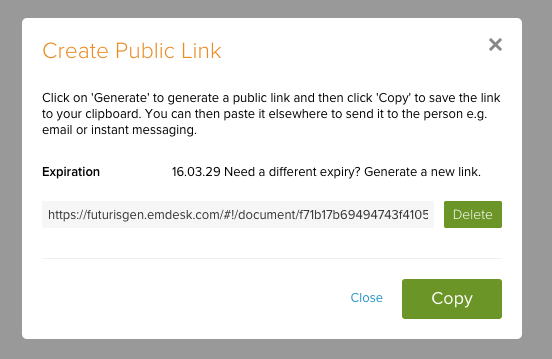
To change the expiration date, delete the existing link first and then generate a new one.
Each file can only have one active public link at a time.
Identifying Files with Public Links
Files that have an active public link are marked with a special icon in the Documents view.
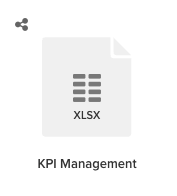
This icon is visible in both tile/grid view and list view, across all document tabs (All, Recent, Favorites, Attachments).
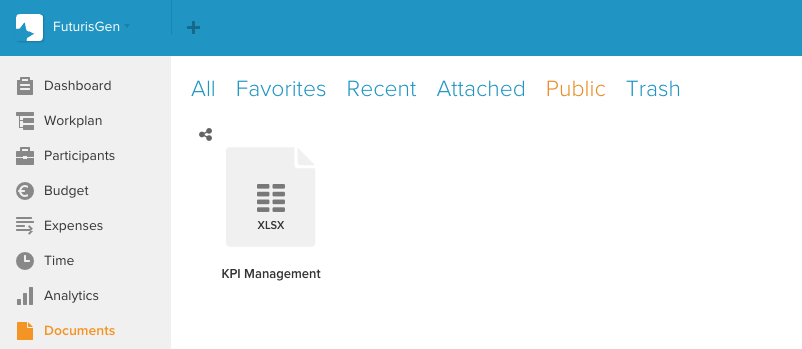
Additionally, a dedicated "Public" tab appears in the Documents navigation when at least one file in the workspace has an active public link. Use this tab to quickly find all publicly shared files.
What Recipients See
When someone opens a public link, they see a full-screen file preview without needing to log in.
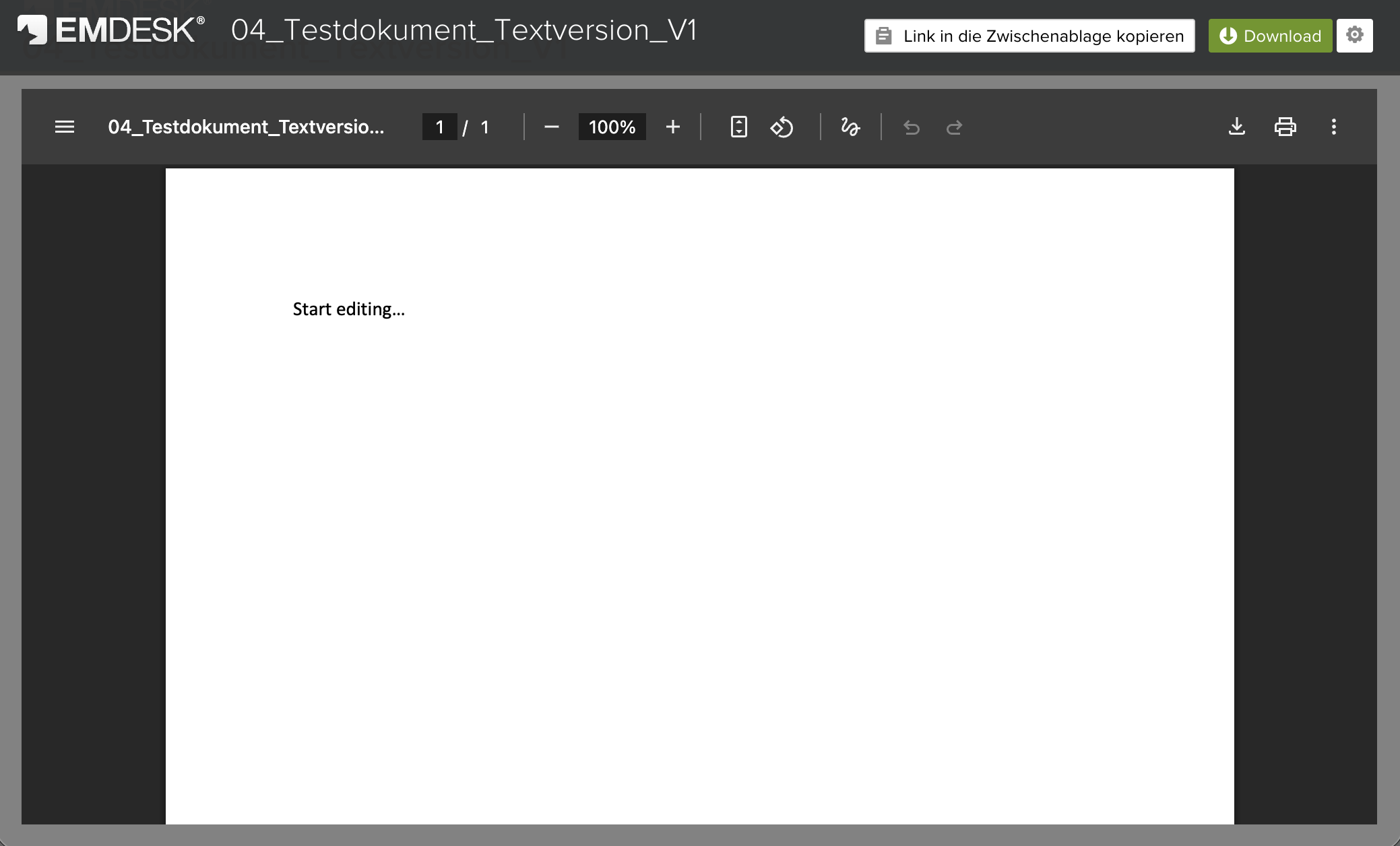
Supported file types
| File Type | Behaviour |
|---|---|
| Images (JPG, PNG, GIF, etc.) | Displayed with a full preview |
| PDFs | Displayed with a full preview |
| Videos | Displayed with a streaming preview |
| Other documents (DOCX, XLSX, ZIP, etc.) | Download only — no preview |
| EMDocs | Not supported — public links cannot be created for EMDocs |
Viewer features
The public link viewer page displays:
- The file name in the header
- Your workspace logo (if configured)
- A Download button to save the file
- A Report button to flag inappropriate content
Direct download and embedding
By default, a public link opens the file in the preview viewer. If you want to provide a direct download link instead — for example, to embed in a website or include in an automated workflow — append /download to the end of the public link URL:
| Link Type | URL Format | Behaviour |
|---|---|---|
| Preview (default) | https://{workspace}.emdesk.com/document/{uuid} |
Opens the file in the browser preview |
| Direct download | https://{workspace}.emdesk.com/document/{uuid}/download |
Downloads the file directly |
This is useful when you want to:
- Embed a download link in a website or email
- Provide a direct file download without the preview page
- Use the link in automated workflows or scripts
Expired or invalid links
If a public link has expired, been deleted, or the file has been removed, the recipient will see the message: "The requested document is not available."
Reporting Content
External viewers can report a publicly shared file if they believe its content is inappropriate. Clicking the "Report" button presents the following options:
- Wrong or misleading document
- Confidential or sensitive information
- Copyright or legal issue
- Offensive or inappropriate content
- Other
A CAPTCHA verification may be required after multiple reports to prevent abuse.
Security and Expiration
- Public links contain cryptographically generated unique identifiers that cannot be guessed.
- All public links require an expiration date — permanent links cannot be created.
- The maximum expiration period is 3 years.
- Links can be deleted at any time by workspace members, immediately revoking access.
- Public download counts are tracked separately from internal download statistics.
Limitations
- EMDocs not supported: The built-in document editor files (EMDocs) cannot be shared via public links.
- No password protection: Public links are secured through unique URLs and expiration dates, but are not password-protected.
- One link per file: Only one active public link can exist per file at a time.
- Expiration required: You cannot create a link without an expiration date.
- No view-only mode: Recipients can always download the file — there is no option to restrict to preview only.
Tips & Best Practices
- Set appropriate expiration dates — use shorter durations for sensitive documents and longer ones for reference materials.
- Use the "Public" tab in Documents to keep track of all files with active public links.
- Delete links when no longer needed — even before expiration, you can revoke access by deleting the public link.
- Check the file icon in Documents view to quickly identify which files are currently shared publicly.