
How completion % is calculated
Completion % (progress) in EMDESK reflects how far an activity (task, work package, sub-project), full project or the whole workspace has progressed based on the latest reported status. It is automatically determined bottom-up from the lowest level (e.g. tasks) and updated at every parent level (work package). Completion values are always retrieved the most recent status update.
Contents
What is completion %?How completion % is enteredCalculation logicStatus update logicWhat the colour of the completion bar meansBest practice tips
What is completion %?
Completion % shows how much of an activity is done at a certain point in time. It is entered manually as part of a status reports at the level of individual tasks or higher levels (work packages, or whole project). Once entered, EMDESK automatically calculates completion at higher levels.
How completion % is entered
Completion % is entered as part of a status report. You can report completion:
- At the lowest levels (e.g. tasks)
- On higher levels (work packages, project) — either manually or as a calculated result
Only the newest status report counts. Older status reports are ignored.
Calculation logic
-
Direct completion for single item (no children)
If a task or activity has a reported completion of 50 %, it is simply shown as 50 %. There is no further calculation if it has no child items.
-
Simple average for parent level (without planned effort)
When multiple child items have completion % and no planned effort assigned, the system calculates the parent’s completion through arithmetic average.
Example:
- Task A: 25 %
- Task B: 50 %
Work package completion = (25 + 50) / 2 = 37.5 %
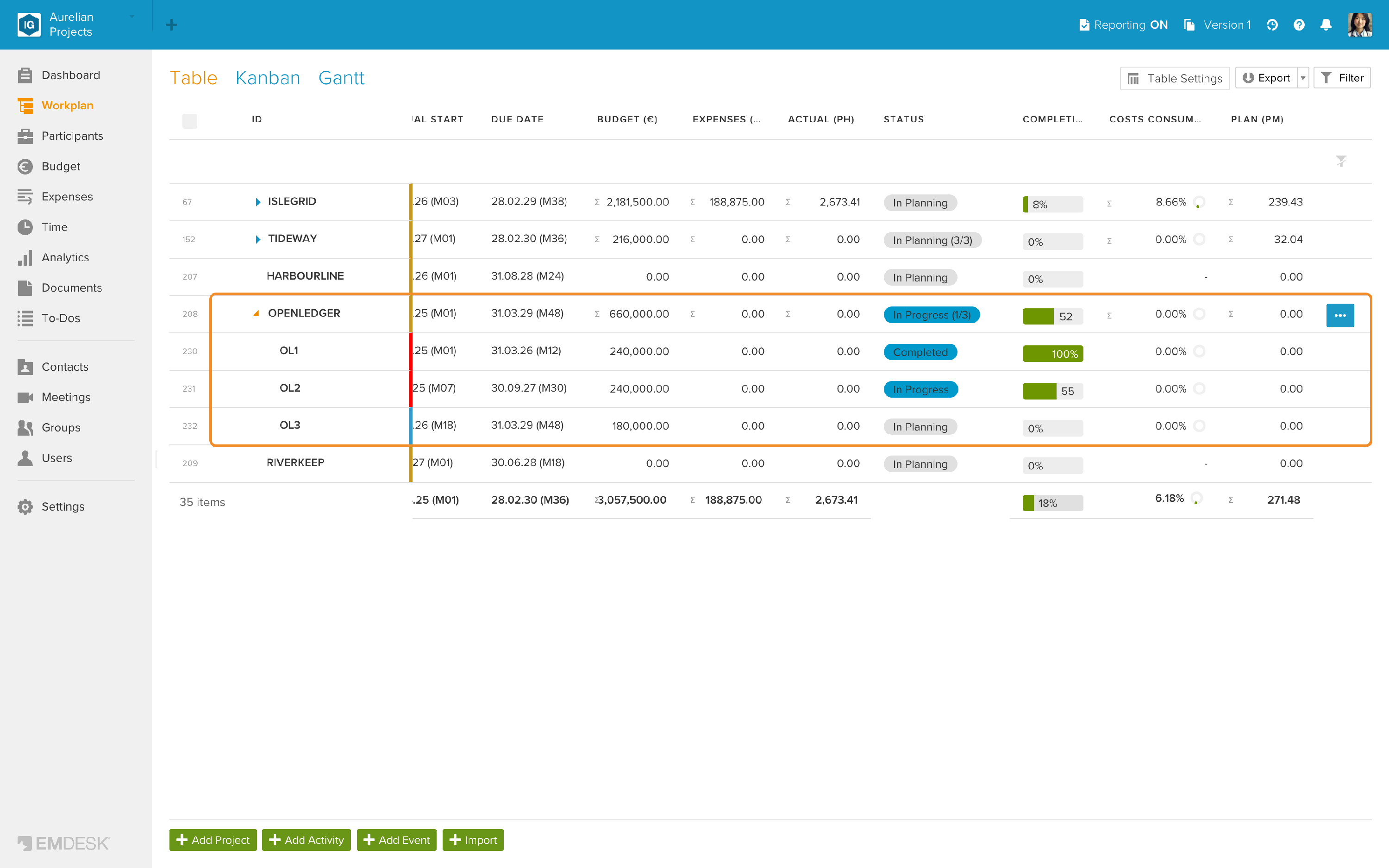
Example from the Workplan (Table view, with the Plan (PM) column added via Table Settings): the sub-activities of OPENLEDGER have no planned effort (Plan (PM) 0.00), so its completion is the simple average (100 + 55 + 0) / 3 ≈ 52 %. Its status In Progress (1/3) is calculated as well.
-
Effort-weighted calculation (if planned effort exists)
If planned effort is assigned (planned person-months, PM), completion is weighted by effort to better reflect actual work volume.
Formula: Completion = Σ(child completion × child effort) / Σ(effort)
Example:
- Task A: 25 % with 5 PM
- Task B: 50 % with 10 PM
Work package completion = (25×5 + 50×10) / 15 = 41.7 %
Only items with planned effort receive weight. As soon as at least one item on the same level has planned effort, items without planned effort have practically no influence on the result.
Example (mixed effort and no effort): • Task A: 50 % with 10 planned PM
- Task B: 25 % with no planned effort
- Task C: 75 % with 5 planned PM
Weighted tasks:
(50 % × 10) + (75 % × 5) = 500 + 375 = 875
Total weighted effort = 15
Weighted result = 875 / 15 = 58.3 %
Task B has no planned effort, so its completion (25 %) has practically no influence on the result.
-
Calculation across multiple parent levels
The same logic applies recursively at every level, for example:
Sub-task → Task → Work Package → Project
Task → Work Package → Sub-Project → Project
Completion always rolls up automatically using either weighted or simple averages, depending on effort availability.
Status update logic
- Always the latest status update date
- When viewing historical periods, the latest report from that specific period is shown.
- Older or overwritten reports have no effect.
Manual override
You can manually set completion % at any parent level:
- It replaces the system-calculated value at that level.
- It automatically propagates upwards to higher levels.
- It remains until a more recent status report for that level or children is reported.
- It does not affect individual child items.
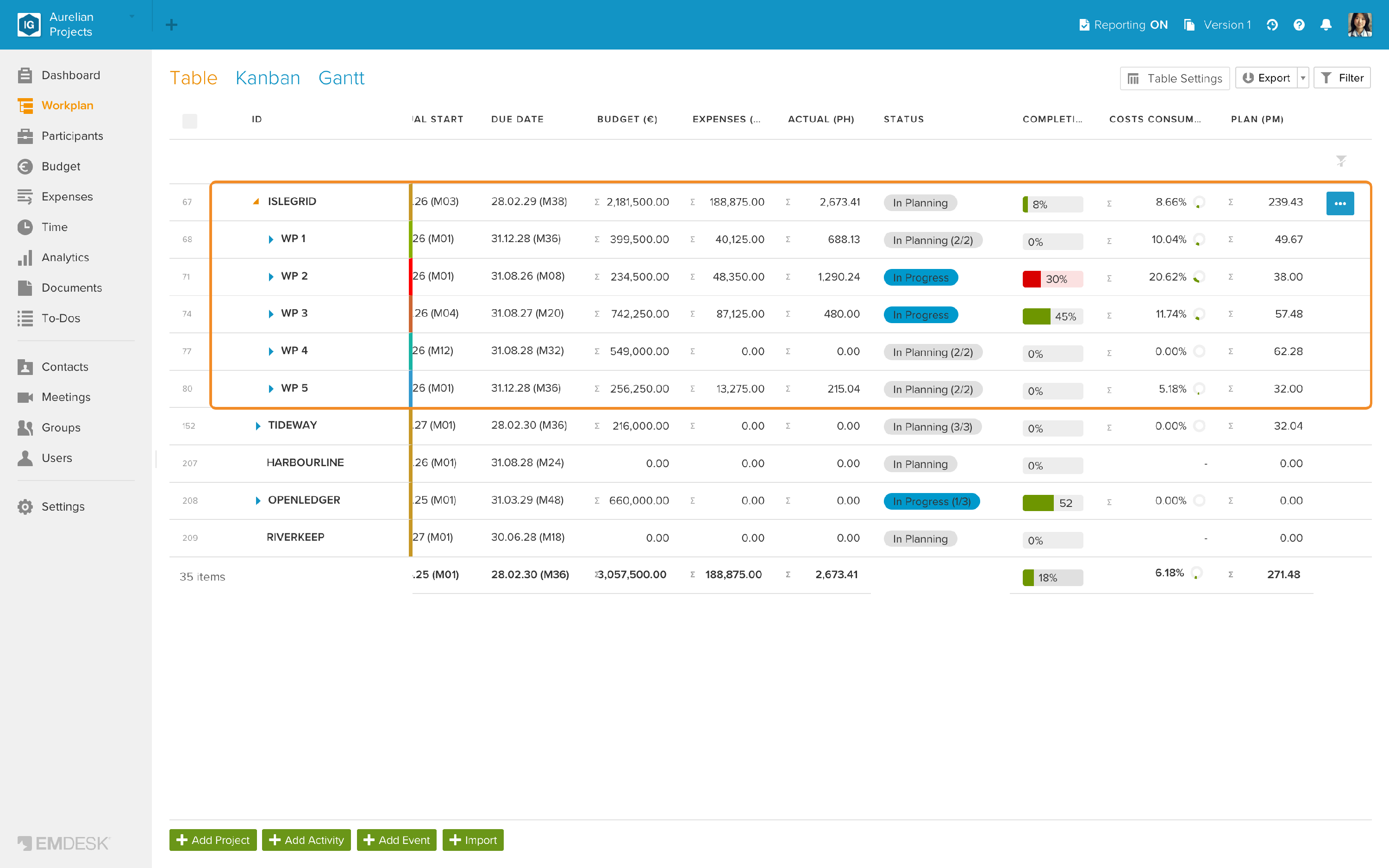
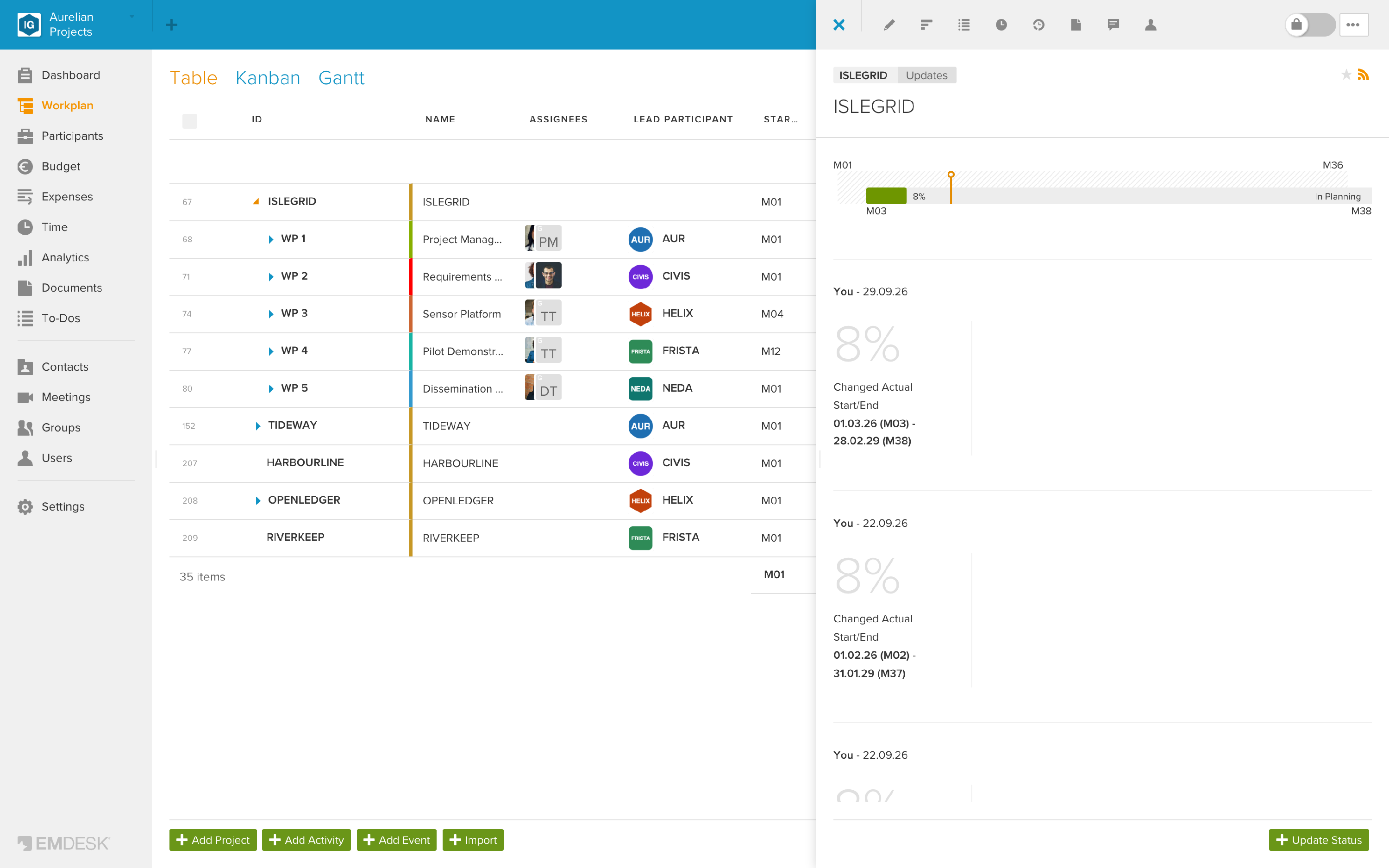
Example: ISLEGRID has its own status update from 29.09.26 with 8 %. Because it is newer than the updates of its work packages, the Workplan shows 8 %. Calculated from the work packages, weighted by their Plan (PM), it would be (30 × 38 + 45 × 57.48) / 239.43 ≈ 16 %. The status has no count such as (2/5) because it was reported, not calculated.
The item's Updates tab shows the reported updates:
What the colour of the completion bar means
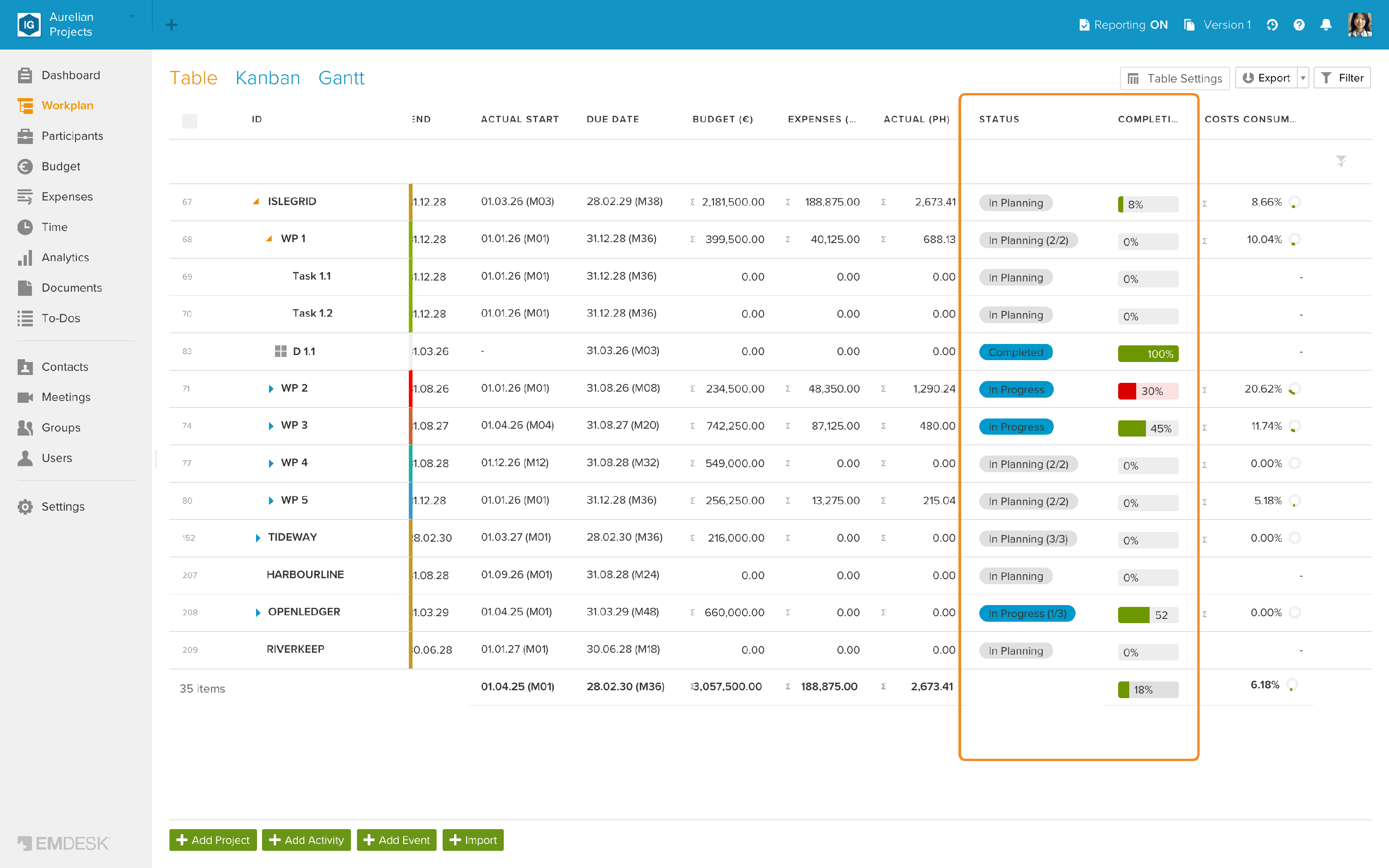
The completion bar (for example in the sidebar and in the Workplan) is coloured by deadline, not by the percentage:
- Green: on schedule. The end date is more than 30 days away, or the current status is one that has This status must be reached switched on in your status workflow.
- Orange: due soon. The end date is today or within the next 30 days.
- Red: overdue. The end date has passed.
The actual end date is used if progress has been reported; otherwise the planned end date. A bar can therefore be red at 90 % or green at 10 %.
In this example, WP 2 is red (its end date has passed at 30 %), while WP 3 (45 %) and D 1.1 (Completed) are green:
Best practice tips
- Enter completion at lowest levels for most accurate roll-up
- Schedule planned effort on activities when possible to improve realism
- Use manual override only if strategic or exceptional
- Update status regularly so reporting reflects actual progress
- Keep reporting dates consistent for reliable comparisons
Summary
| Situation | How it is calculated |
|---|---|
| Single task or activity | Displays the completion % entered directly in the latest status report |
| Multiple children, no planned effort | Average of all child completion % values |
| Children with planned effort | Effort‑weighted average based on planned person-months (PM) |
| Mixed effort and no effort | Only children with planned effort count |
| Manual override | Replaces calculated value at that level and propagates upward |
| Reporting view | Always shows the latest status report within the reporting period |
| Colour of the completion bar | Deadline signal: green on schedule, orange due within 30 days, red overdue |