
Filter Analytics reports
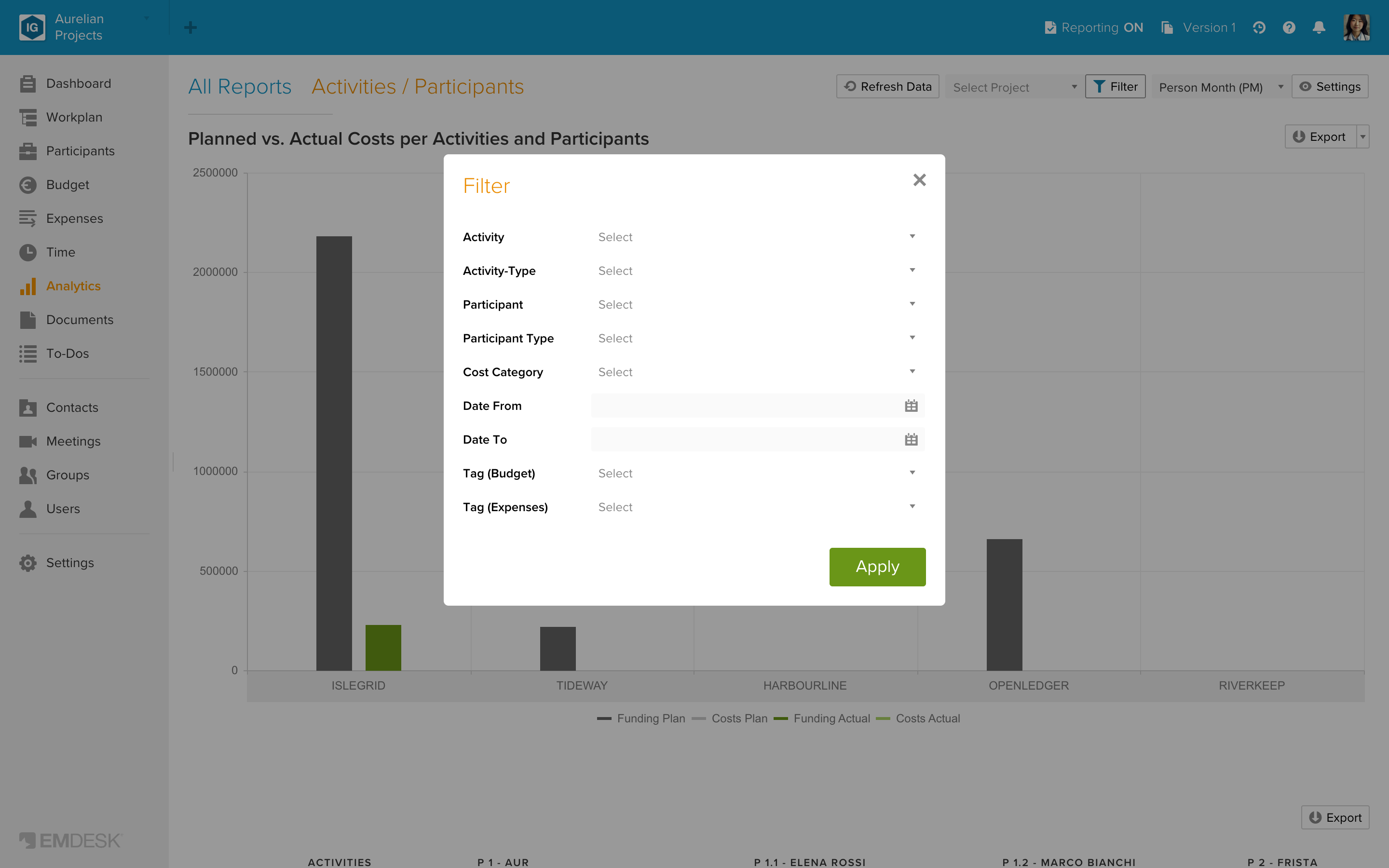
Filters narrow a report to what you want to see, for example one participant, one period or one tag. Both the chart and the tables of the report follow the filters.
Add a filter
- Open a report and click Filter.
- Choose one or more values in the fields you need. You can pick several values per field. For Activity and Participant you can pick a parent, which selects its children too.
- Click Apply.
The active filters appear next to the button. The button is highlighted while filters are active. Which fields you get depends on the report; see "Choose the right Analytics report".
In workspaces that use projects, a project dropdown sits next to the button. It applies at once and limits the report to one project, including its activities.
Filter by period
You can limit a report by Date From and Date To, or by one or more Reports (reporting periods). Use one of the two, not both. If you set both, EMDESK keeps the dates and drops the reporting periods (in workspaces with projects, the set you are currently looking at counts).
- In a workspace without projects, both fields are in the filter dialog.
- In a workspace with projects, the dialog shows the date fields. Choose a project first, then click Filter by report instead to pick reporting periods. The list contains the reporting periods of the chosen project. Filter by date instead switches back.
An entry that reaches across the edge of your period is counted only for the part inside the period. Budget items are planned in project months (month 1 starts at the project start date). An item runs from the start of its first project month to the end of its last one, and the part inside your period is counted by days. An expense with a start and end date is split by days too. See "Why Analytics figures can differ from Budget and Expenses".
Filter by tag
Tag (Budget) filters only the Plan figures. Tag (Expenses) filters only the Actual figures. You can use them together, for example to compare budget items with one tag against expenses with another.
Remove a filter
Click the small cross at the filter next to the button. The report reloads.
What is remembered
Your filters are saved in your browser, separately for each report and each pinned tab. When you open the same report in the same tab again, they are still set.