
Depreciate equipment costs
When a project uses a piece of equipment only partly, or only for part of the time over which the equipment is depreciated, only the matching share of its cost can be charged to the project. The depreciation calculation of an expense calculates this share for you.
Note: In EU grants such as Horizon Europe, the cost of equipment is usually its depreciation, calculated according to the usual accounting practice of your organisation. Use the depreciation period that your organisation applies in its accounts.
Calculate the depreciated cost
- In Expenses, click Add Expense. Choose the date, the Activity, the Participant and a Cost category of the type Fix, for example Equipment.
- Enter the full purchase price as the amount.
- Click the depreciation button (the chart icon) next to the amount. The Depreciation calculation dialog opens.
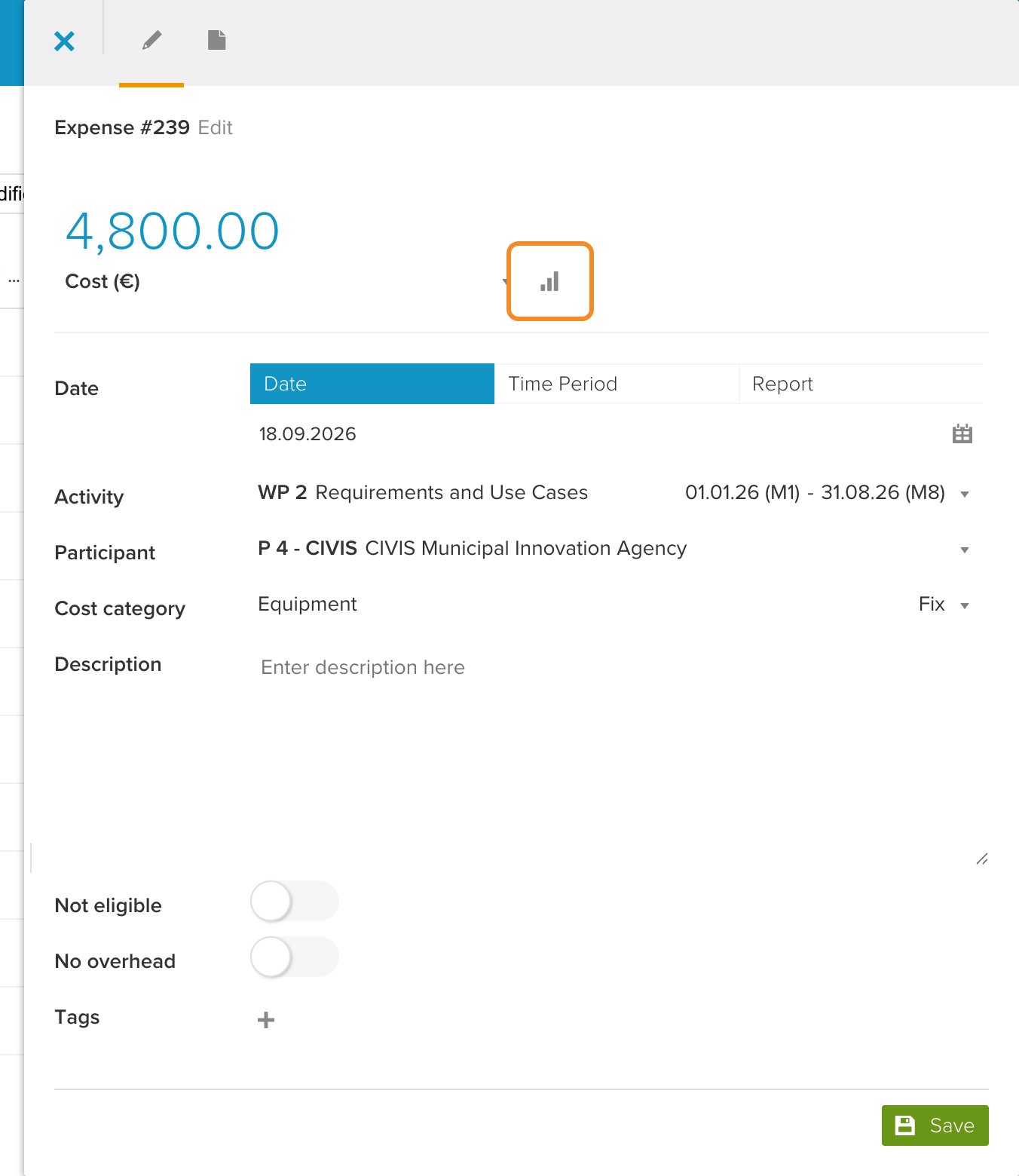
Note: The depreciation button works only when the activity has a start date and an end date that are at least one month apart.
- Check or fill in the fields:
- Total Purchase Cost: the purchase price. It is taken from the amount that you entered.
- Currency: the currency of the purchase price. If you choose a foreign currency, the Book in foreign currency dialog opens when you click Save, so that you can convert the price into the workspace currency.
- Depreciation Period: the number of months over which the equipment is depreciated. Choose from 24 to 120 months, in steps of 12.
- Usage Share (%): the share of the use that belongs to this project.
- Months Used: the number of months that the project uses the equipment. It is filled in with the number of full months of the activity; change it if the project uses the equipment for a shorter time.
- Check the calculated cost below the fields and click Save.
- Click Save in the sidebar to save the expense.
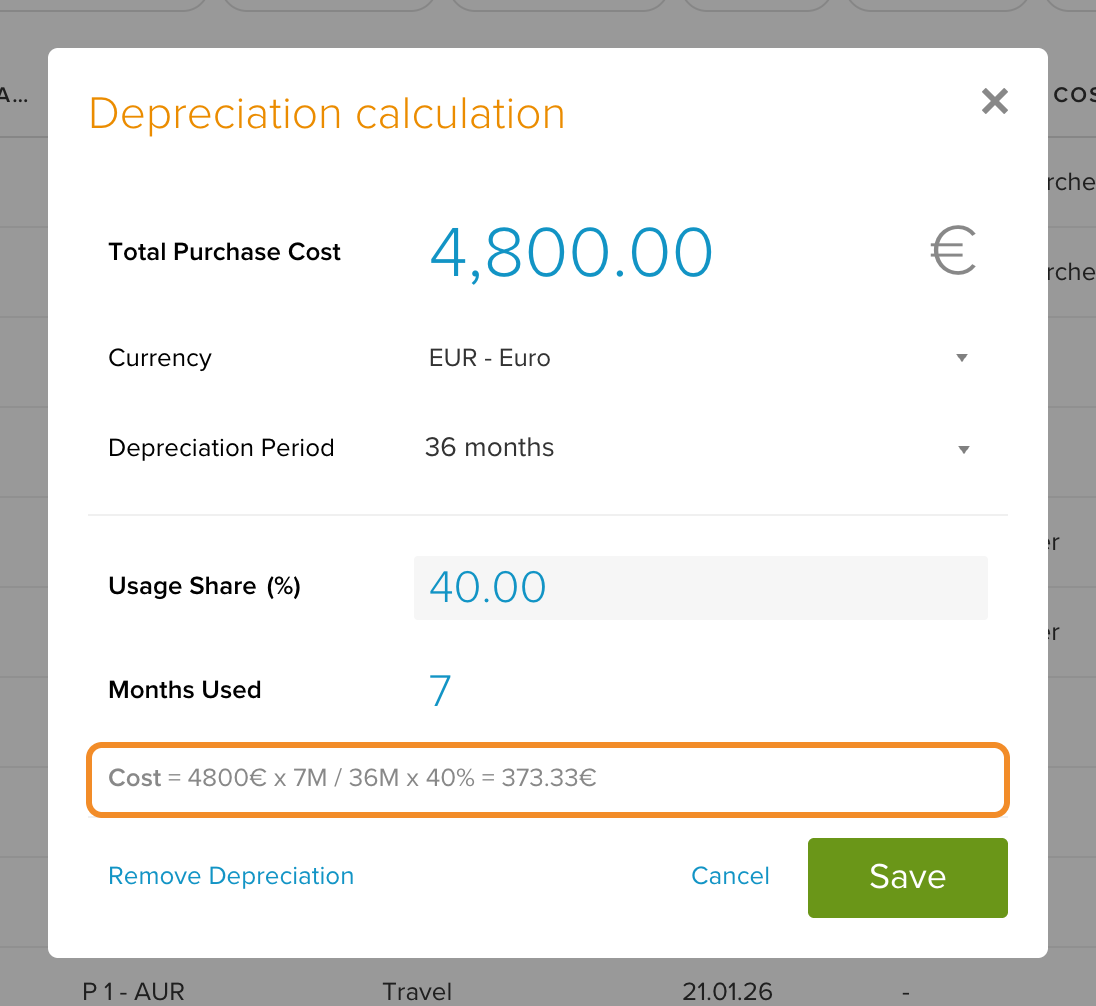
The cost is calculated as follows: Total Purchase Cost ÷ Depreciation Period × Usage Share × Months Used. For example, equipment bought for €4,800, depreciated over 36 months and used 40% for the project during 7 months: 4,800 ÷ 36 × 40% × 7 = €373.33. The expense then carries €373.33, not the purchase price.
Note: Months Used cannot be greater than the Depreciation Period. If it is, the dialog shows a warning and you cannot save.
Change or remove a depreciation
Open the expense and click the depreciation button again to change the values. To remove the depreciation, click Remove Depreciation in the dialog and confirm. The amount of the expense does not change back automatically: enter the full amount again and save the expense.
Note: If you add a foreign currency conversion from the currency label below the amount, an existing depreciation of the expense is removed. For equipment bought in another currency, choose the currency in the Depreciation calculation dialog instead.