
Report expenses in a foreign currency
You can report expenses in currencies other than the workspace currency. EMDESK converts the amount into the workspace currency, so that your financial reports stay correct when costs are paid in different currencies.
Note: Foreign currencies are available for cost categories of the type Fix, not for personnel costs that are calculated from a rate. For equipment that you depreciate, choose the foreign currency in the Depreciation calculation dialog, not with the currency label.
Report an expense in a foreign currency
Open the Expenses section. You can choose a foreign currency while you report a new expense or when you edit an existing one.
-
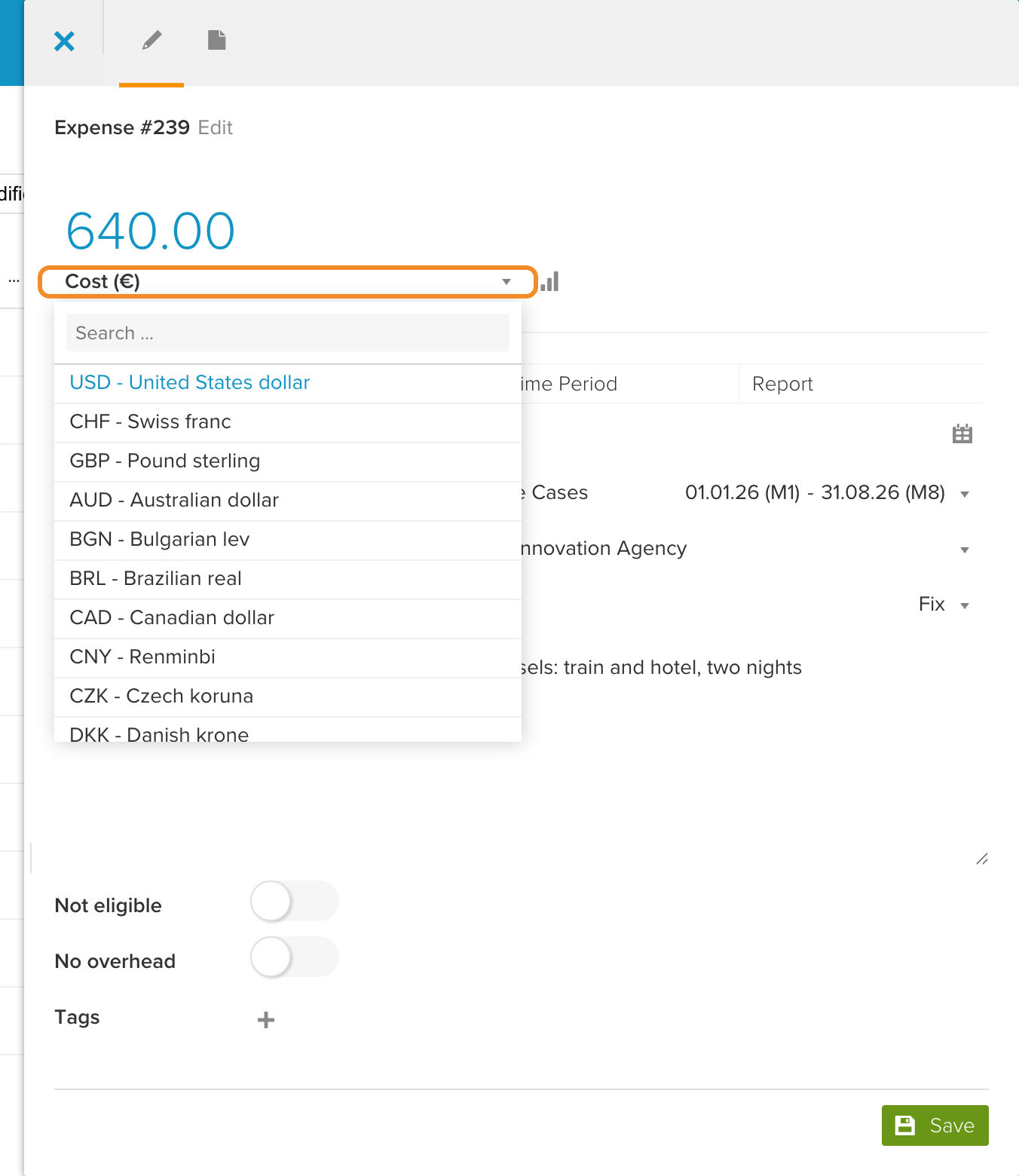
Click the currency label below the amount, for example Cost (€).
-
A drop-down menu with the available currencies appears. Select the currency that you paid in. The Book in foreign currency dialog opens.
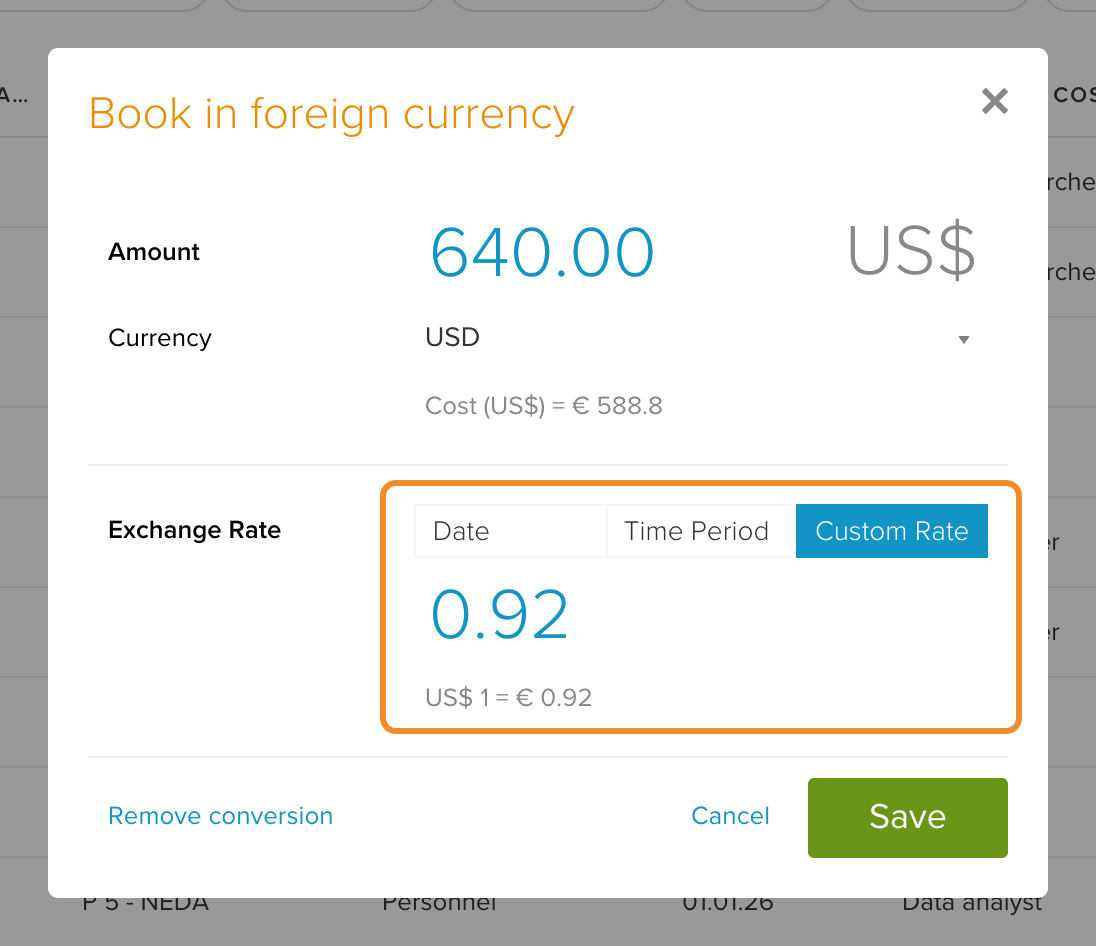
- Enter the amount in the foreign currency.
- If required, change the currency in the Currency drop-down menu.
- Choose how the exchange rate is found. There are three options to convert the foreign currency into the workspace currency:
- Date: the daily exchange rate of a specific date.
- Time Period: the average exchange rate over a period of time.
- Custom Rate: an exchange rate that you enter yourself.
Note: With Date or Time Period, the date or the end of the period may lie in the future. For days without a published exchange rate, EMDESK uses the most recent rate and updates the converted amount automatically once all rates are published. This does not happen for expenses in a locked reporting period. A Custom Rate is never changed automatically.
- Click Save. The amount is converted into the workspace currency with the method that you chose.
- Click Save in the sidebar to save the expense.
Update or remove a foreign currency conversion
Open the expense in the Expenses section.
-
Click the currency label below the amount. A drop-down menu with the currencies appears.
- Click the pencil icon next to the active currency to open the Book in foreign currency dialog again.
- Change the settings and click Save.
To remove the conversion, open the dialog in the same way and click Remove conversion and confirm.