
Link to-dos to your work plan
A to-do doesn’t have to live only in the "To-Dos" section. You can link it to any item in your project — an activity, an event, a participant, a budget or expense item, or a file — so the task sits in the context of the work it belongs to. Linking works both ways: the to-do shows what it’s linked to, and every work item has its own "To-Dos" tab.
What you can link a to-do to
You can link a to-do to any item in the "Workplan", "Budget", "Expenses", "Participants", and "Documents" sections, including:
- Activities and events (deliverables and milestones) in the Workplan
- Participants
- Files and documents
- Budget items and expenses
Each item type appears only if you have access to that section.
Link a to-do to a work item
- Open or create a to-do.
- In the Linked to field, use the search field to find the item and select it. You can link more than one item.
- Click Save To-Do.

Each linked item appears as a chip on the to-do. Click a chip to jump straight to that item.
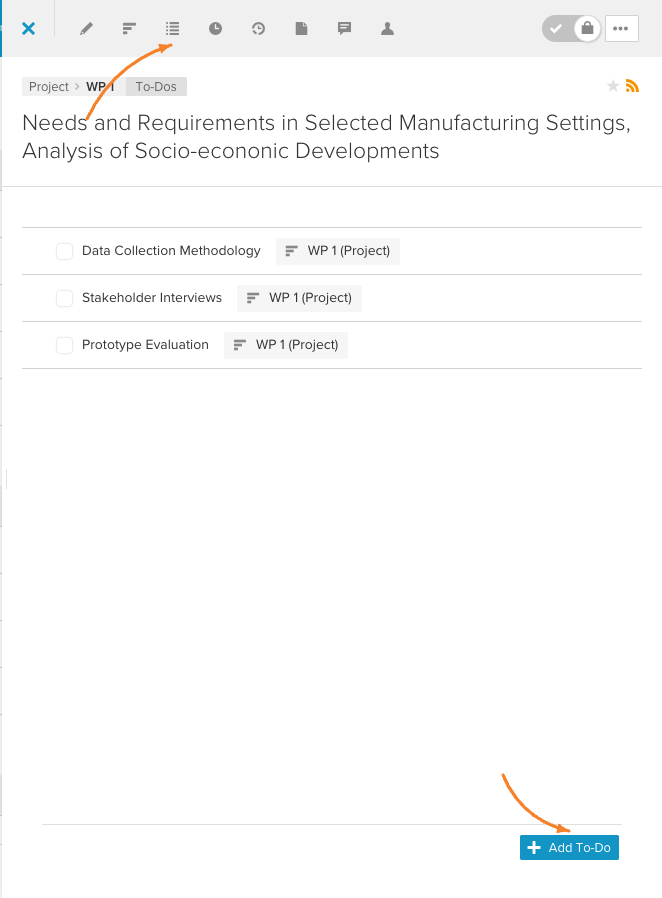
See and add to-dos from a work item
Every activity, event, participant, budget item, and expense has its own "To-Dos" tab that lists the to-dos linked to it.
- Open the item’s sidebar — for example, click an activity in the Workplan.
- Go to the "To-Dos" tab to see everything linked to it.
- Click Add To-Do at the bottom to create a new to-do. It is automatically linked to the item you’re on.
The new to-do has the same fields as any other — see Create and edit to-dos for how to fill them in.